Open Source Role Playing Game Updates ~ Ubuntu Vibes | Daily Ubuntu Linux Updates
The last one Valyria Tear looks very nostalgic!
Showing posts with label Linux. Show all posts
Showing posts with label Linux. Show all posts
Wednesday, October 3, 2012

Sunday, August 26, 2012
Friday, July 27, 2012
Wednesday, May 9, 2012
Sunday, May 6, 2012
Saturday, April 21, 2012


Thursday, March 1, 2012
Friday, February 17, 2012
Monday, January 9, 2012
Updating Mendeley Desktop from version 1.1 to 1.3 in Ubuntu 11.10
Alright, so I was having issues updating MD. I finally figured it out. Stupid mistake by me. I posted this in the Mendeley support forum:
I answered it myself once I figured it out which wasn't long after I posted it!!
Just type sudo dpkg -i mendeleydesktop_1.3_amd64.deb in the terminal but make sure you point it to or are in the right directory. I had to do this since the commands sudo apt-get update and sudo apt-get install mendeleydesktop did not work for me. I think it has something to do with MD not having posted a repository for Ubuntu 11.10 yet (?).
Edit: 1-18-12 A new release just came out for MD, 1.3.1. The update manager automatically installed it this time.
I am having trouble upgrading from MD ver 1.1 to 1.3 in Ubuntu 11.10. I've looked everywhere for help but haven't found any. I noticed there (or I couldn't find it at least) is not an MD repository for Ubuntu 11.10. Is it because there (from what I have noticed) are some problems with dpgk and/or dependcies, etc., especially with new installations? I've tried deleting and re-downloading. I've tried running the update in the terminal, in the update manger, and in the software center. So far, nothing works. I don't want to delete and do a fresh install since Mendeley Desktop does not save preferences/settings for "Document Details" (unless there is a way and I do not know/ haven't found it). Any ideas, thoughts?
I answered it myself once I figured it out which wasn't long after I posted it!!
Ahh, what a sec. I may have found my mistake. I tried "sudo dpkg -i mendeleydesktop_1.3_amd64.deb" but didn't realize, until now, that I didn't specify the directory which is in Downloads in my home folder. I also didn't read the error closely which told me the file wasn't found in the directory I was using!! So I changed the directory and reran the command. Oh yeah, that worked! Doh! Sorry. Well if anyone overlooks stuff like me, then maybe this will help!
Just type sudo dpkg -i mendeleydesktop_1.3_amd64.deb in the terminal but make sure you point it to or are in the right directory. I had to do this since the commands sudo apt-get update and sudo apt-get install mendeleydesktop did not work for me. I think it has something to do with MD not having posted a repository for Ubuntu 11.10 yet (?).
Edit: 1-18-12 A new release just came out for MD, 1.3.1. The update manager automatically installed it this time.
Friday, December 23, 2011
6 Best BURG Themes and How to Install BURG Themes in Ubuntu 11.10? | Tech Drive-in
I thought I'd share this. It seems pretty cool and I'd thought it would be nice to spread since this is a good way for us to learn about new and different things.
6 Best BURG Themes and How to Install BURG Themes in Ubuntu 11.10? | Tech Drive-in
BURG is basically a boot loader for Linux based on GRUB. Burg has a highly configurable menu system which works in both text and graphic mode. Simply put, BURG can be extensively customized and there are a number of good quality BURG themes available all over the web for free. Lets find out the best among them and also see how to install BURG and the following BURG themes in Ubuntu 11.10.I like this because it looks like a nice way to handle multiple installations of Linux and other OSs such as Mac and Windows.
6 Best BURG Themes and How to Install BURG Themes in Ubuntu 11.10? | Tech Drive-in
Saturday, August 27, 2011
Awesome Linux Bash Shell Cheat Sheet for Beginners | Tech Drive-in
Awesome Linux Bash Shell Cheat Sheet for Beginners | Tech Drive-in
A resource for terminal commands! Courtesy of:
http://freeworld.posterous.com/
Download: http://dl.dropbox.com/u/397277/bash_shell_cheat_sheetV2.pdf
A resource for terminal commands! Courtesy of:
http://freeworld.posterous.com/
Download: http://dl.dropbox.com/u/397277/bash_shell_cheat_sheetV2.pdf
Wednesday, August 24, 2011
Pre-built Binary Install and Compile from Source Install — Sage Installation Guide v4.7.1
Pre-built Binary Install — Sage Installation Guide v4.7.1 - http://www.sagemath.org/doc/installation/binary.html
In order to install a binary (a pre-compiled version) of Sage:
1) Go here -> Download for Linux - http://www.sagemath.org/download-linux.html
and choose a mirror.

2) Choose you system bit type then system appropriate file -> my case was 64-bit and I chose the smaller file to download


3) Then extract package and move to desired folder location. For additional path naming etc. information see -> Pre-built Binary Install - http://www.sagemath.org/doc/installation/binary.html
I, for example, simply extracted it into the folder it was downloaded to -> home/Downloads then moved it to home.


4) Then simply execute the Sage command by typing:
in the directory. If you don't and try to double click on it like the big dummy I am then it won't run and you might get confused and try to run make (like I did) which is not necessary, but you can do it :). Sage will then open in a browser, but on your local machine. Sage is heavy on being online based (works in a web browser) so that is why it opens in a browser.


Also see link:
Quick Download and Installation Guide - http://wiki.sagemath.org/DownloadAndInstallationGuide
If you choose to compile yourself,
1) then download the source file from the mirror of your choice:

2) You may have to do extra steps (see below), but then run the command "make" without quotations (simply type make) in a terminal command line IN the directory where the "sage" file is located.

Source Code - http://www.sagemath.org/download-source.html
In order to install a binary (a pre-compiled version) of Sage:
1) Go here -> Download for Linux - http://www.sagemath.org/download-linux.html
and choose a mirror.
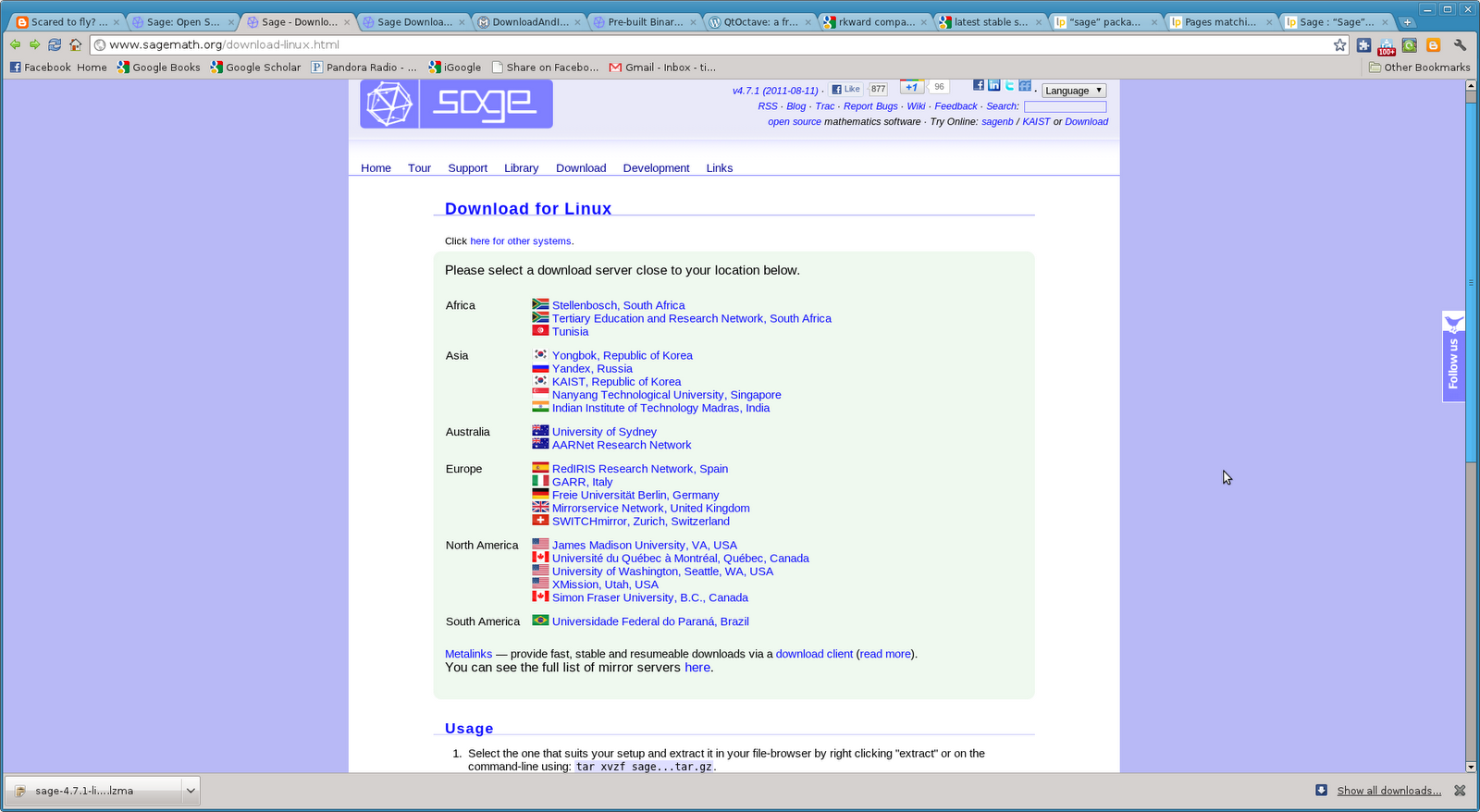
2) Choose you system bit type then system appropriate file -> my case was 64-bit and I chose the smaller file to download
sage-4.7.1-linux-64bit-ubuntu_10.04.1_lts-x86_64-Linux.tar.lzma
*.lzma compressed binaries can be extracted via
tar --lzma -xvf sage-*...tar.lzma
They save you about 150MB to download.


3) Then extract package and move to desired folder location. For additional path naming etc. information see -> Pre-built Binary Install - http://www.sagemath.org/doc/installation/binary.html
I, for example, simply extracted it into the folder it was downloaded to -> home/Downloads then moved it to home.


4) Then simply execute the Sage command by typing:
./sage
in the directory. If you don't and try to double click on it like the big dummy I am then it won't run and you might get confused and try to run make (like I did) which is not necessary, but you can do it :). Sage will then open in a browser, but on your local machine. Sage is heavy on being online based (works in a web browser) so that is why it opens in a browser.


Also see link:
Quick Download and Installation Guide - http://wiki.sagemath.org/DownloadAndInstallationGuide
If you choose to compile yourself,
1) then download the source file from the mirror of your choice:

2) You may have to do extra steps (see below), but then run the command "make" without quotations (simply type make) in a terminal command line IN the directory where the "sage" file is located.

Source Code - http://www.sagemath.org/download-source.html
Information
Thank you for your interest in Sage! You can get the complete source for Sage to compile it on your own Linux or Mac OS X system. Sage lives in an isolated directory and does not interfere with your surrounding system. It ships together with everything necessary to develop Sage, the source code, all its dependencies and the complete changelog.
Short instructions:
Extract archive
Start compiling:make
Run Sage: ./sage
Upgrade to newer version later:./sage -upgrade
Please read the README.txt and the installation guide for more details. Note: On Linux systems like Debian/Ubuntu, you may have to install the build essential package, the m4 macro processor, and gfortran:
sudo apt-get install build-essential
sudo apt-get install m4
sudo apt-get install gfortran
You might also consider installing the readline package and its corresponding development headers. These packages make it easier to work with the Sage command line interface by providing text editing features at the command line level:
sudo apt-get install readline-common
sudo apt-get install libreadline-dev
There is a very high level changelog.
You can browse all the tracked source code repositories and see exactly what's going on, and who did what when.
Monday, August 22, 2011
ÜberStudent - Ubuntu version for Students and Researchers
Pretty interesting.
ÜberStudent - Ubuntu version for Students and Researchers | Ubuntu Geek


http://www.uberstudent.org/
ÜberStudent - Ubuntu version for Students and Researchers | Ubuntu Geek
Features of ÜberStudent
System
# Pic 1 Built upon compatibility with the latest distribution of Ubuntu (version 9.10), the world’s dominant open source operating system. With ÜberStudent, you can be confident that you are computing from both strength and stability.
# Free to download, install, use and share. And when the next version comes out, it too will be free. You’ll no longer have to lay out painful cash every few years just to keep updated.
# Works “out-of-the-box” on nearly every manufacturer’s computer, both new and older, and tools and guides are right onboard to get your hardware going for the rare instances otherwise. Give ÜberStudent a test run from its Live DVD! When you’re ready to install, you can do it side-by-side with your current configured operating system and choose between them at boot time.
# Fully multimedia-ready in mere seconds. Just go to the Extras Menu in the Main Menu (“Start Button”), click the appropriate icons, and you’re all set.
# High-yield quick-help guides, example program usages, and templates for academic work by top educators and students (but approved by educators) are on-board in ÜberStudent, and their number is growing. You’ll save time and very quickly become productive by doing.
# ÜberStudent is blazingly fast, much faster than the operating system with which you are probably accustomed. It boots much faster, and programs both load and respond faster—no more clicking and constant waiting! And when you search for files, you’ll have results in an instant. You can even preview the contents of files by simply highlighting the file (clicking on it once) and hitting the space bar.
# An eye-popping user interface comes default on ÜberStudent, as expected of a next-generation operating system. With just a few clicks you can additionally enable a Mac-like dock, and on higher end computers you can easily install free proprietary drivers and enable amazing window animations that are at the utter pinnacle of the desktop computing world.
# Easily accesible power-user extras that won’t get in the way of those who aren’t looking for them. For example, just hit F12 to call up Guake Terminal, from which you’ll find the most commonly used command line programs are ready to go.
Core Programs
In addition to a full array of programs befitting a complete operating system, ÜberStudent comes with a customized selection of expertly configured core programs for students of all academic disciplines (some programs may change until the 1/15/10 release-date, last update to below list 1/13/09).
# Zotero configured to cite your sources into Open Office Writer, a full-featured word-processor similar to and compatible with Microsoft Word. Our customized Zotero turns the popular Firefox browser into a powerful, easy-to-use research tool that helps you gather, organize, cite, and analyze sources, and then share the results of your research online or through a network. Our Firefox browser itself comes with numerous customizations to immediately boost your academic productivity.
# Google Plus Search, our Firefox extension that unobtrusively adds links to additional searches, seeded with your Google search term(s). ÜberStudent can work with your learning institution to customize it to display search links to library catalog and subscription resources, e.g., EBSCO and JSTOR, so links to high quality academic resources display right within most students’ first stop for information, Google.
# NoteCase Notes Manager, a hierarchical note manager (outliner) that helps students and researchers take and organize notes into logically-arranged tree-like structures (each note can have sub-notes). Fire up your laptop and one of our NoteCase templates first thing when you arrive to class! See our on-board example usages—you’ll kick yourself for ever trying to get along with paper and pen; plus, when it comes time to write papers, you’ll find you already have them partly written! We recommend you take notes from articles for research papers within Zotero, however.
# AutoKey, a program in which you can easily key in an unlimited number of keyboard abbreviations to reduce the need to type out frequently written words or phrases. Just key an abbreviation for a word or phrase, and then every time you type the abbreviation it is instantly replaced by the word or phrase. AutoKey works literally everywhere you can type in ÜberStudent, but it is especially amazing coupled with NoteCase Notes Manager. You’ll have clearer class notes, and more of them, than ever before.
# Semantik, a mind-mapping tool to visually help students study and write texts such as dissertations, theses, research papers, essays, and even screenplays.
# Parley, a program to help you memorize any material on any subject. Create virtual flashcards from your class notes taken in NoteCase, or download pre-made sets and increase those available by uploading your own.
# Golden Dictionary, a full-featured multi-lingual dictionary, thesaurus, translator, and word-pronouncer that works with literally every program in ÜberStudent at just the touch of a key. Goodbye clunky dictionary.com!
# GNOME Do, inspired by Apple’s Quicksilver, enables you to quickly search for items on your computer or the web, and perform useful actions on those items.
# Gloobus Preview, like Apple’s Quicklook, enables you to quickly glance at the contents of your files and folders. Just highlight the file or folder, hit the space bar, and have a look!
# Top Shelf, a handy program to help you organize and track drafts of papers.
# Cloud Menu with the speed of Prism brings the ease of Cloud Computing to your desktop. Google Calendar and Google Docs sync through Google Gears for both on- and off-line use. Building your network with Facebook has never been simpler and faster, nor has Gmail. Remember The Milk! helps you keep organized and syncs with Google Calendar. And just in case, EyeOS, a full-featured opensource online operating system, is available with just a click.
# Mozilla Thunderbird with Lightning Calendar, which can automatically sync with Google Calendar, iCalendar and others.
# KMyMoney, to help ensure that your finances are kept in correct order.
# Mendeley, like iTunes for research papers, although we much more recommend Zotero.
# ÜberStudent’s Extras Menu provides easy access to additional drivers, software, and other extras.
Other Program Highlights
We realize it’s counterproductive to only study, and that you’ll want to keep contact with friends and family. That’s why we’ve included some of the very best play-ready games, everything you need to rip and burn CDs, programs to make your music sound amazing and handle nearly every video format ever invented, and well-chosen messaging programs. We’ve done this without uneccesary program redundancy.
Games
A full range of games, from 3D chess, to flash pinball, to card games, to a Space Invaders clone and the utterly hilarious Potato Guy and more, are onboard in ÜberStudent. In addition, you can let off stress with the fast-paced first-person 3D shooter game, Warsow, or try your hand in the World of Goo, an amazing Wii-like physics-based puzzle/construction game.
Messaging
Every major (and some minor) Instant Messaging service is ready-to-go within one program, Pidgen, in ÜberStudent. As well, Skype is on board for voice calls. In addition, we’ve include a microblogging client to help you keep current on Twitter, Jaiku, Identi.ca, Facebook, Flickr, Digg, and RSS. There’s even a super-simple IRC program, and one that hooks into your webcam to enable you to send personalized messages.
Multimedia
ÜberStudent comes with everything you need to download, rip, and burn media disks, and programs to handle nearly every audio and video format ever invented, including DVDs and all the formats you’ll encounter everyday on the Internet. Use eMusic Remote to tap over 7-million top songs and albums at half the price of iTunes, and play them in Audacious Music Player, where our expert plugin and equalizer settings (over thirty) will make them sound amazing!
http://www.uberstudent.org/
UberStudent (uber meaning "productive" in Latin) is a free, user-friendly Linux distribution for learning, doing, and teaching academic success at the higher education and advanced secondary levels. It is supported by a free Moodle-based virtual learning environment. Lifelong learners, researchers, and knowledge workers of all types will also benefit.
UberStudent fundamentally redefines what it means to be an operating system for education. At core, it is a pedagogically cohesive academic success curriculum integrated into an installable, easy-to-use, and full-featured learning platform.
UberStudent is developed by professional educators around a core academic skills approach. These are research and writing, study, and self-management skills, essentials to students regardless of their academic major. UberStudent can additionally be extended for specific academic disciplines using its on-board tools to finding and installing additional software. An additional learning outcome of using UberStudent is the achievement of not just computer literacy but computer fluency for lifelong success.
While foremost for academic computing, UberStudent is also decked out for multimedia, graphics, messaging, and even games, all with the needs of students in mind.
Not just for for end-users, UberStudent is the perfect Linux distribution for installation by learning institutions, and customized installations and commercial support or consulting are available.
We would be pleased to present UberStudent and its vision to increase student learning and support the mission of learning institutions to your campus or group. We may be reached at info@uberstudent.org.
Saturday, August 20, 2011
MintMenu PPA Updated For Ubuntu 11.04 (Classic Ubuntu Session) ~ Web Upd8: Ubuntu / Linux blog
MintMenu is away to get Linux Mint DE on Ubuntu without dual booting or running in a VM. Here is some info.
MintMenu PPA Updated For Ubuntu 11.04 (Classic Ubuntu Session) ~ Web Upd8: Ubuntu / Linux blog - 03 May 2011 - http://www.webupd8.org/2011/05/mintmenu-ppa-updated-for-ubuntu-1104.html
Install Linux Mint Main Menu (MintMenu) In Ubuntu From A PPA - 23 May 2010 - http://www.webupd8.org/2010/05/install-linux-mint-main-menu-mintmenu.html
Install Linux Mint (USP) Main Menu in Ubuntu - 14 Mar 2010 - http://www.webupd8.org/2010/03/install-linux-mint-slab-main-menu-in.html
Dual boot- Ubuntu and Mint - February 2nd, 2008 - http://ubuntuforums.org/showthread.php?t=685230
[SOLVED] UBUBNTU - How many different flavours do exist? (& is Kubuntu easy to use?) - November 26th, 2007 - http://ubuntuforums.org/showthread.php?t=624064
Linux Mint 11 installation tips: - Friday, October 28, 2011 (not sure what calendar this guy is on?!) - http://ubuntu-install.blogspot.com/
Complete LinuxMint theme for ubuntu - Jul 23, 2011 - http://askubuntu.com/questions/54208/complete-linuxmint-theme-for-ubuntu
MintMenu PPA Updated For Ubuntu 11.04 (Classic Ubuntu Session) ~ Web Upd8: Ubuntu / Linux blog - 03 May 2011 - http://www.webupd8.org/2011/05/mintmenu-ppa-updated-for-ubuntu-1104.html
Install Linux Mint Main Menu (MintMenu) In Ubuntu From A PPA - 23 May 2010 - http://www.webupd8.org/2010/05/install-linux-mint-main-menu-mintmenu.html
Install Linux Mint (USP) Main Menu in Ubuntu - 14 Mar 2010 - http://www.webupd8.org/2010/03/install-linux-mint-slab-main-menu-in.html
Dual boot- Ubuntu and Mint - February 2nd, 2008 - http://ubuntuforums.org/showthread.php?t=685230
[SOLVED] UBUBNTU - How many different flavours do exist? (& is Kubuntu easy to use?) - November 26th, 2007 - http://ubuntuforums.org/showthread.php?t=624064
Linux Mint 11 installation tips: - Friday, October 28, 2011 (not sure what calendar this guy is on?!) - http://ubuntu-install.blogspot.com/
Complete LinuxMint theme for ubuntu - Jul 23, 2011 - http://askubuntu.com/questions/54208/complete-linuxmint-theme-for-ubuntu
Linux Mint 11 vs. Ubuntu 11.04
Some info on Linux Mint 11 vs. Ubuntu 11.04.
Sibling Rivalry: Linux Mint 11 vs. Ubuntu 11.04 | TechSource - 6/13/2011

http://www.linuxmint.com/
Sibling Rivalry: Linux Mint 11 vs. Ubuntu 11.04 | TechSource - 6/13/2011
http://www.linuxmint.com/
Sunday, August 14, 2011
Quad Monitors in Linux
Well, I couldn't get it to work in Unity yet. I do have a work around for my setup which works for Ubuntu GNOME classic and KDE. This is what I posted in the Ubuntu Forums so far.
Next steps: 1) see if I can get separate screen for each monitor and be able to move windows amongst them all and 2) get this to work in Unity!!
Ubuntu 11.04 + Gnome Classic + 4 LCD Monitors - http://ubuntuforums.org/showthread.php?t=1743715&page=2
July 7th, 2011:
Ugh, can't get 4 to work at all. I have NO problems with a dual setup. I want 1x4.
Running 8800GTS for ASUS 22" both DVI, Twinview works fine.
Other card is an 8400 GS, two Acer 19", one DVI, one VGA. I see everything fine in in nvidia x server settings, but the two Acer screens have a red tint to them when I enable them.
I've also had both Acer's working with the 8800. I wanted to add two more displays for multi-tasking so I got the ASUS screens and the 8400 (no particular reason except the ASUS's were cheap open box on newegg and the card was just something that seemed like it would work fine for what i wanted).
Running Ubuntu 11.04 Unity, I have also had the same issue in both KDE and XFCE desktops. Not sure if I've had dumb luck with duals and Ubuntu because I haven't had any issues, knock on wood.
Sorry, nothing to really add. Just wanted to log my setup and issue. Still a noob to Linux/Ubuntu (been using about a year), but I'm not looking back, I love it so far!!
Oh, and I am pretty sure I am not running any of the fancy Compiz stuff (3D, etc.). I don't want/need it.
Today/Yesterday: Sunday, August 14, 2011
Update: Still no working solution.
So I did get quad monitors to "work" but ran into the issues others have posted about (not sure if it was here or not). It was weird. I had live screens on all four monitors, but the far two "duals" on the right had the tool bar one the left of the two screens. So monitor 3 of 4 had the tool bar as if the screens had shifted from what I thought I had setup to be 1-4 starting from the far left. However, I had to click on the left two "duals" in blank space (I had a desktop background just no windows or the tool bar) which showed up on the right duals. So in order to restart or change the configurations back, I had to blindly click in monitor 1 of 4 to execute what I saw in monitor 3 of 4. Or it may have been the other way around. I forget, it has been probably a month since I did it. Sorry, should have posted when it was fresh, but I was so DAMN frustrated!! I want to say I enabled Xinerama to get the four monitors to "work" or at least display something on the screens with two TwinViews(???) since I have two monitors on one card each.
Anyways, still chugging along fine with dual monitors TwinView, except, I get black blocks every now and then on windows where I had to shrink or move the window to get everything to show again. I also noticed that Ubuntu Unity 11.04 allows the window snap feature of the half screen to work in the middle of the TwinView for both screens. I don't think that was working before, but maybe I missed it too. Thought that was pretty sweet. So if they are fixing stuff like that, then I think 11.10 and 12.04 are going to be so much better (well I am not sure if it was an Ubuntu update or nVidia or both since I did update my driver to 280.13, but I still think the next Ubuntu releases will be a big fix). Try to hang in there guys with Unity. I like it. At first I was ehh, but I got used to it. Of course everyone has their personal preferences for their needs, and I am definitely not going to "force" someone to use it or say that it is better than blah, blah, blah.
Anyways, hopefully next post will have a fix!
edit: Now that I think about, I remember I had the left two screens stretched as one screen at one point. Not sure if this was with the other two screens "working" or not. Maybe I'll try GNOME classic or KDE, but I relly like Unity now that I am used to it, .
edit2: ok, so a work around! GNOME classic and KDE allow quad monitors for my setup. However, I have "two" stretch "screens" for the left and right pair of monitors, but I can move windows to all four monitors. You have to have Xinerama enabled. Even if the pairs are treated like separate X screens then the monitors are still stretched. Also in the "separate" mode there is no bar across the right pair of screens nor can I move windows between pairs. This might be the best solution for now. At least I can use the real estate now. I can even use snap windows in KDE so I don't have to manually resize too much which I thought might be a problem with the stretched screens!! I am guessing XFCE might work in this way too. Sticking with KDE for now since a) I love blue, and b) I use Kile and Kopete anyways.
I'm new to KDE so I don't know all of its tricks. I am liking it so far.
Screenshots:
edit3: Ok, so KDE was running slow. Not sure if it had to do with the screens or not. Quads do work in XFCE and Xubuntu. I am going with Xubuntu for now.


Next steps: 1) see if I can get separate screen for each monitor and be able to move windows amongst them all and 2) get this to work in Unity!!
Wednesday, August 10, 2011
Tuesday, August 9, 2011
8 Best CAD Apps for Linux | Tech Drive-in
For those interested in CAD programs for Linux, here is a review from Tech Drive-In.
8 Best CAD Apps for Linux | Tech Drive-in
8 Best CAD Apps for Linux | Tech Drive-in
Subscribe to:
Posts (Atom)