Here is a quick link for accents for letters from wikibooks.
LaTeX/Accents - http://en.wikibooks.org/wiki/LaTeX/Accents
Thursday, July 14, 2011

Wednesday, July 13, 2011
Please Make A Note: How to Cite a Blog & Automatically Generate Citati...
Please Make A Note: How to Cite a Blog & Automatically Generate Citati...: "The MLA format for citing a blog is: Last Name, First. 'Title of Entry.' Weblog Entry. Title of Weblog. Date Posted. Date Accessed (URL). ..."
Monday, July 11, 2011
Please Make A Note: Total Number of Posts and Comments - Blogger Gadge...
Here's a nifty post from PMAN on how to use the HTML/Javascript gadget to display the total number of blog posts and comments.
Please Make A Note: Total Number of Posts and Comments - Blogger Gadge...: "You can add the total number of posts and comments as a blogger gadget. In your design page, add an HTML/Java Script gadget, and put in the ..."
Please Make A Note: Total Number of Posts and Comments - Blogger Gadge...: "You can add the total number of posts and comments as a blogger gadget. In your design page, add an HTML/Java Script gadget, and put in the ..."
Sunday, July 10, 2011
Dealing with .rar files in Ubuntu
In order to be able to uncompress .rar files in Ubuntu you can install the unrar app from the Software Center or in the terminal type:
sudo apt-get install unrar
You can search for unrar in the Sc by typing rar or unrar.


There is a free version and not free version. I installed the not free version, but it must install both because I haven't seen anything about paying.
To use unrar simply right-click the file and select "Extract here" or open one of the Archive Managers for more options.


In the terminal the command "unrar e ~/filename.rar" should extract/upack the file(s). Found here: Unpack RAR Files In Ubuntu 10.10 Maverick Meerkat With unrar - http://www.jonathanmoeller.com/screed/?p=2354 @ the website Help Desk Screeds - tips, tricks, and hints for those distressed by computers by Jonathan Moeller - http://www.jonathanmoeller.com/screed/
unrar e ~/archive.rar
Also see these links for additional information on compression file types and unrar.
http://ubuntuforums.org/showthread.php?t=1736110
http://ubuntuforums.org/showthread.php?t=1588047
http://www.techienote.com/tag/ubuntu-11-04/page/9
https://help.ubuntu.com/community/FileCompression
http://www.techienote.com/2010/10/open-rar-files-in-ubuntu-10-10.html
http://opencheese.com/2009/05/08/ubuntu-how-to-unrar-rar-files-with-ubuntu/
sudo apt-get install unrar
You can search for unrar in the Sc by typing rar or unrar.


There is a free version and not free version. I installed the not free version, but it must install both because I haven't seen anything about paying.
To use unrar simply right-click the file and select "Extract here" or open one of the Archive Managers for more options.


In the terminal the command "unrar e ~/filename.rar" should extract/upack the file(s). Found here: Unpack RAR Files In Ubuntu 10.10 Maverick Meerkat With unrar - http://www.jonathanmoeller.com/screed/?p=2354 @ the website Help Desk Screeds - tips, tricks, and hints for those distressed by computers by Jonathan Moeller - http://www.jonathanmoeller.com/screed/
unrar e ~/archive.rar
Also see these links for additional information on compression file types and unrar.
http://ubuntuforums.org/showthread.php?t=1736110
http://ubuntuforums.org/showthread.php?t=1588047
http://www.techienote.com/tag/ubuntu-11-04/page/9
https://help.ubuntu.com/community/FileCompression
http://www.techienote.com/2010/10/open-rar-files-in-ubuntu-10-10.html
http://opencheese.com/2009/05/08/ubuntu-how-to-unrar-rar-files-with-ubuntu/
Posting LaTeX equations in Blogger
Here are some links to a few useful ways to post LaTeX equations in Blogger.
First a set of links from PMAN. The first is the latest followed by a couple of older ones to show you PMAN's progression. I "shared" the post earlier and I accidentally switched two in chronology. Here they are in correct order from latest to earliest.
Please Make A Note: How to Post LaTeX Equations in Blogger
Edit: 8-5-11
Well, the codecogs thing is nice but not perfect. It doesn't seem to work with LaTeX environments such as
These are outdated, but maybe interesting reads for readers.
How to Post Math Equations in Blogger Using Latex
How to Post Math Equations in Blogger using ASCIIMathMIL
Edit: 8-5-11, I couldn't get this watchmath.com thing to work. I don't recommend it.
A couple of links from WatchMath @ watchmath.com. The first post is the latest, some links were moved. The second is old but a full explanation of the process. Also check out the rest of the blog. I haven't looked at it much, but it seems to have some good stuff there such as math videos and posts.
How To Install Latex On Blogger/Blogspot - http://watchmath.com/vlog/?p=438 July 10th, 2009
Finally here is where I found the link to WachMath.com at the blog The tools of the trade. I've also added both WatchMath and The tools of the trade to my blog list.
LaTeX in Blogger/Blogspot:
First a set of links from PMAN. The first is the latest followed by a couple of older ones to show you PMAN's progression. I "shared" the post earlier and I accidentally switched two in chronology. Here they are in correct order from latest to earliest.
Please Make A Note: How to Post LaTeX Equations in Blogger
Edit: 8-5-11
Well, the codecogs thing is nice but not perfect. It doesn't seem to work with LaTeX environments such as
\begin{align} \end{align}These are outdated, but maybe interesting reads for readers.
How to Post Math Equations in Blogger Using Latex
How to Post Math Equations in Blogger using ASCIIMathMIL
Edit: 8-5-11, I couldn't get this watchmath.com thing to work. I don't recommend it.
A couple of links from WatchMath @ watchmath.com. The first post is the latest, some links were moved. The second is old but a full explanation of the process. Also check out the rest of the blog. I haven't looked at it much, but it seems to have some good stuff there such as math videos and posts.
How To Install Latex On Blogger/Blogspot - http://watchmath.com/vlog/?p=438 July 10th, 2009
The mathtex server is down. Change mathtex2.js on the script into mathtex3.js.
Mathtex3.js using the mathtex server of John Forkosh.
There were some people who moved from Blogger to WordPress because the later has a capability to render math formula/equation/symbols by using LaTeX syntax. I also observed that there are many math Blogger who faithfully stay with Blogger. I believe that given the some capability to write math formula as in WordPress will give more power to the blogger to express their idea and also to make the reader easier to grasp the ide on their article. Besides that of course having latex on your blog make your blog more beautiful . Ok without further ado here are the steps to enable latex on your blogger (thanks to John Forkosh for his mathtex public server and thanks to Randall Farmer for his replacemath javascript)
Finally here is where I found the link to WachMath.com at the blog The tools of the trade. I've also added both WatchMath and The tools of the trade to my blog list.
LaTeX in Blogger/Blogspot:
I was wondering if it would be possible to display latex formulas in Blogger - and of course it is. :-) I found a post by Watchmath describing how this can be done by adding a HTML/Javascript Gadget (like the "Blog Archive" on the right) with a little piece of javascript code. If it works, the following code
X(k) = \sum\limits_{i=0}^{N-1}x(n)e^{-2\pi ik \frac{n}{N}}
Please Make A Note: How to Post Math Equations in Blogger Using Latex
Please Make A Note: How to Post Math Equations in Blogger Using Latex: "In a previous post , I discussed how to post math equations in blogger using the ASCIIMathML script. The advantage of using this method is t..."
Please Make A Note: How to Post Math Equations in Blogger using ASCIIM...
Please Make A Note: How to Post Math Equations in Blogger using ASCIIM...: "I know that most of us working directly with mathematics are looking for a fundamental solution to posting equations on blogger. So far, I w..."
Please Make A Note: How to Post LaTeX Equations in Blogger
Please Make A Note: How to Post LaTeX Equations in Blogger: "I've gone through several approaches to post math equations on blogger (check my previous posts here, and here ). I found that the most eff..."
Friday, July 8, 2011
Kile Online Documentation
Here is the link for Kile's online documentation.
The Kile Handbook - http://kile.sourceforge.net/Documentation/html/index.html
The Kile Handbook - http://kile.sourceforge.net/Documentation/html/index.html
Linux distros - a good explanation of several of the most popular Linux distributions
I found this link which does an excellent job to describe the most popular/known/used different Linux distros.
http://distrowatch.com/dwres.php?resource=major
I am thinking of testing out a few different distros other than the buntus since I have added two more monitors for a total of four screens. Apparently, the buntus and maybe Linux in general has issues with multiple monitor displays, especially displays which stretch the desktop to consecutively use them all. I have never had a problem with a dual setup. However, now with two video cards and four screen, I am having trouble getting more than two working together. Thus, I may check other distros to se if they can do a better job of handling this problem. It also seems that the newer releases are the most buggy for the Buntus which is backwards but I guess older versions have allowed people to tweak with them to work. I am thinking about Fedora and/or Linux Mint.
http://distrowatch.com/dwres.php?resource=major
I am thinking of testing out a few different distros other than the buntus since I have added two more monitors for a total of four screens. Apparently, the buntus and maybe Linux in general has issues with multiple monitor displays, especially displays which stretch the desktop to consecutively use them all. I have never had a problem with a dual setup. However, now with two video cards and four screen, I am having trouble getting more than two working together. Thus, I may check other distros to se if they can do a better job of handling this problem. It also seems that the newer releases are the most buggy for the Buntus which is backwards but I guess older versions have allowed people to tweak with them to work. I am thinking about Fedora and/or Linux Mint.
Wednesday, July 6, 2011
LaTeX package "listings" - for displaying code in LaTeX
This is a pretty cool package I came across while searching for a way to display Octave (MATLAB) code in a HW set using LaTeX to write it up. Did I mention I love LaTeX?!? I do. I really do. While others would disagree, LaTeX works well for short documents also. Anyways, listings is a pretty cool package as it has built recognition of many programming and code types. If it doesn't have the code type you are working with, you can define it yourself! I actually found out about it on Ubuntu Forums.
LaTeX and displaying code in document - http://ubuntuforums.org/showthread.php?t=439185
LaTeX and displaying code in document - http://ubuntuforums.org/showthread.php?t=439185
LaTeX Packages, TeX Catalogue Online, and CTAN
Finally, I am moving on with some things. Got the thesis submitted to my advisor even though I am not happy with it. Oh well, it is just a Master's, and the important one is the PhD. Hopefully, the journal publications will come through and be more of what I had in mind material-wise. Anyways, I am finally getting to catch up on some things, including the blog. Don't worry (to my advisor), this pertains to my degrees, plus I am not funded anymore by the school, :(.
Back on topic, I apologize for the blog's mess right now. I kind of have some things repeated, scattered, and poor reproduction, especially related to LaTeX and Math features. Just bare with me, and on day it will get cleaned up fully, :P. Plus, if I ever get around to it, some of the material will be presented in a nice way on my wiki-site!
In general, one could just google everything like I normally do, but I hope to catalogue things here for a more concise search and I hope to present it better one day for quicker references!!
Here is a link I stumbled upon which lists a few of the packages in LaTeX and a brief description (not sure if the links work, see the TeX Catalogue Online for links that I know do work).
LaTeX Packages - http://math.kangwon.ac.kr/~yhpark/tex/packages.html
Another link from the Art of Problem Solving or AOPS.
LaTeX Packages - http://www.artofproblemsolving.com/Wiki/index.php/LaTeX:Packages
Link to the WikiBook site.
LaTeX/Packages - WikiBooks - http://en.wikibooks.org/wiki/LaTeX/Packages
And the motherload, the TeX Catalogue Online. This has package indices with a brief description and links.
TeX Catalogue Online, Home Edition, listing 4,048 TeX, LaTeX, and related packages and tools - http://texcatalogue.sarovar.org/

And of course CTAN -"The Comprehensive TeX Archive Network is the place to get materials related to the TeX typesetting system."
Web Interface to CTAN - http://tug.ctan.org/

Here is a section on standard packages from an online html LaTeX guide/book.
Standard packages - http://tex.loria.fr/ctan-doc/macros/latex/doc/html/usrguide/node11.html
The same with a Stanford university domain.
Standard packages - http://www.slac.stanford.edu/comp/unix/package/tex/latex/usrguide/node11.html
I am looking into how to use addition math/font packages so I can incorporate some new symbols into my equations. Sorry, Greek, but there simply isn't enough of you for symbolization!! I'll let you know how it goes. Actually, I am "simply" trying to use the antiquated Greek symbol "qoppa," sometimes also spelled "coppa" or "koppa."
For me: LaTeX packages and software to look at later
yatex - Yet Another TeX mode for Emacs
YaTeX is an intelligent, acquisitive and integrated package which reduces
your efforts of composing LaTeX source on Emacs.
YaTeX automates typesetting and previewing of LaTeX and enables
completing input of LaTeX mark-up command such as `\begin{}'..`\end{}'.
This package also includes yahtml mode, the honest and bright YaTeX-compatible
major-mode for writing HTML. If you have noticed the power of YaTeX, you can
drive yahtml over the HTML files quickly and steadily. And vice versa, of
course.
YaTeX also supports Demacs which runs on MS-DOS(386), Mule
(Multi Language Enhancement to GNU Emacs), and LaTeX on DOS.
For more information, please refer to http://www.yatex.org/
nbibtex - Powerful, flexible replacement for bibtex
Tools to help authors take better advantage of BibTeX data,
especially when working in collaboration. Instead of using BibTeX
'keys', which are chosen arbitrarily and idiosyncratically, nbibtex
builds a bibliography by searching the actual contents of citations.
It can be used as a drop-in, compatible replacement for bibtex.
mendexk - a replacement for makeindex with many enhancements
This is an upper-compatible(but slow) substitute for the makeindex program
which forms part of standard TeX distribution. Mendex features better
Japanese(EUC) support and more.
glosstex - prepare glossaries and lists of acronyms
GlossTeX is a tool for the automatic preparation of glossaries, lists
of acronyms and sorted lists in general for use with LaTeX and
MakeIndex. GlossTeX combines the functionality of acronym, nomencl
and GloTeX. Like GloTeX, it uses the same format glossary definition
files. GlossTeX can be used together with nomencl, nevertheless.
chaksem - LaTeX class for presentations
chaksem is a LaTeX2e class for slides. Based on seminar, it adds
support for running footers as well as itemised and numbered lists,
with a layout that fits nicely to the sans serif font used for text.
There is support for overlays, which includes the ability to accumulate
text and images on the slides for online presentations. Printable
lecture notes with collapsed overlays are also able to be generated from
this class.
biblatex - Bibliographies for LaTeX
The biblatex package is a complete reimplementation of the bibliographic
facilities provided by LaTeX in conjunction with BibTeX. It redesigns the way
in which LaTeX interacts with BibTeX at a fairly fundamental level. With
biblatex, BibTeX is only used to sort the bibliography and to generate labels.
Instead of being implemented in BibTeX's style files, the formatting of the
bibliography is entirely controlled by TeX macros. Good working knowledge in
LaTeX should be sufficient to design new bibliography and citation styles —
there is no need to learn BibTeX’s postfix stack language. Just like the
bibliography styles, all citation commands may be freely (re)defined.
axiom-tex - A general purpose computer algebra system: style file for TeX
Axiom is useful for
research and development of mathematical algorithms. It defines a
strongly typed, mathematically correct type hierarchy. It has a
programming language and a built-in compiler.
Axiom has been in development since 1973 and was sold as a
commercial product. It has been released as free software.
Efforts are underway to extend this software to (a) develop a
better user interface (b) make it useful as a teaching tool
(c) develop an algebra server protocol (d) integrate additional
mathematics (e) rebuild the algebra in a literate programming style
(f) integrate logic programming (g) develop an Axiom Journal with
refereed submissions.
This package contains a TeX style file useful in publishing results
obtained with Axiom.
sketch - 3D diagrams for TeX from scene description language
Sketch is a simple system for producing line drawings of
three-dimensional objects and scenes. Sketch is intended to produce finely
wrought, mathematically-based illustrations with no extraneous detail
and be able to easily overlay TeX math and text. The input language is
reminiscent of PSTricks, so will be easy to learn for current PSTricks
users. It generates either PSTricks or TikZ/PGF code as output.
Note that this package is not the interactive vector drawing program
now known as skencil.
context - powerful TeX format
ConTeXt is a document-production system based, like LaTeX, on the TeX
typesetting system. Whereas LaTeX insulates the writer from
typographical details, ConTeXt takes a complementary approach by
providing structured interfaces for handling typography, including
extensive support for colors, backgrounds, hyperlinks, presentations,
figure-text integration, and conditional compilation. It gives the
user extensive control over formatting while making it easy to create
new layouts and styles without learning the TeX macro language.
ConTeXt's unified design averts the package clashes that can happen
with LaTeX.
ConTeXt also integrates MetaFun, a superset of MetaPost and a powerful
system for vector graphics. MetaFun can be used as a stand-alone
system to produce figures, but its strength lies in enhancing ConTeXt
documents with accurate graphic elements.
ConTeXt allows the users to specify formatting commands in English,
Dutch, German, French, or Italian, and to use different typesetting
engines (PDFTeX, XeTeX, Aleph, and soon LuaTeX) without changing the
user interface. ConTeXt is developed rapidly, often in response to
requests from the friendly user community.
blahtexml - Converts TeX equations into MathML (What the heck is MathML?!?!?!)
Blahtex converts an equation given in a syntax close to TeX into
MathML. Blahtexml is a simple extension of blahtex. In addition to
the functionality of blahtex, blahtexml has XML processing in mind
and is able to process a whole XML document into another XML
document. Instead of converting only one formula at a time, blahtexml
can convert all the formulas of the given XML file into MathML.
auctex - integrated document editing environment for TeX etc.
AUCTeX is a comprehensive customizable integrated environment for writing
input files for TeX/LaTeX/ConTeXt/Texinfo using GNU Emacs. Currently
XEmacs ships with its own AUCTeX version.
texlive-omega - TeX Live: Omega
Omega, a 16-bit extended TeX by John Plaice and Yannis Haralambous
This package includes the following CTAN packages:
antomega -- Alternative language support for Omega/Lambda.
lambda -- LaTeX format based on the Omega engine.
mxd -- Support for Mongolian "horizontal" (Xewtee Dorwoljin) script.
mxedruli -- A pair of Georgian fonts.
omega -- A wide-character-set extension of TeX.
aleph -- Extended TeX.
omegaware --
tex-gyre - scalable PostScript and OpenType fonts based on URW Fonts
The TeX Gyre project, following the Latin Modern project, aims at providing
a rich collection of diacritical characters in the attempt to cover as many
Latin-based scripts as possible.
lout - Typesetting system, an alternative to (La)TeX
Lout is a document formatting system similar in style to LaTeX, i.e.
it works with mark-up files - plain text files containing commands to
control the formatting.
Lout offers a very full range of features, including
* PostScript, PDF, and plain text output
* optimal paragraph and page breaking
* automatic hyphenation
* PostScript EPS file inclusion and generation
* equation formatting, tables, diagrams
* rotation and scaling
* sorted indexes, bibliographic databases
* running headers and odd-even pages, automatic cross referencing
* multilingual documents including hyphenation (most European languages are
supported, including Russian),
* formatting of C/C++ programs.
Lout may be extended by writing definitions which are much simpler than
the equivalent troff or TeX macros.
Lout has several advantages over (La)TeX. It is much smaller, and it is
much easier to understand how to do things in Lout (including writing
definitions) than in TeX or LaTeX. Lout's PostScript output is very small
and clean.
However, it is much less widely used than (La)TeX, so there are
fewer add-on definition packages for Lout than for (La)TeX and fewer
local experts around to ask about problems. You are unlikely to
find many Lout documents floating around the 'net.
texlive-xetex - TeX Live: XeTeX packages
Packages for XeTeX, the Unicode/OpenType-enabled TeX by Jonathan Kew,
http://scripts.sil.org/xetex.
This package includes the following CTAN packages:
arabxetex -- An ArabTeX-like interface for XeLaTeX.
euenc -- Unicode font encoding definitions for XeTeX.
bidi -- Support for bidirectional typesetting with XeLaTeX.
fontspec -- An automatic interface to feature-rich fonts in XeLaTeX.
fontwrap -- Bind fonts to specific unicode blocks.
harvardkyoto -- XeTeX input map for Unicode Devanagari.
mathspec -- Specify arbitrary fonts for mathematics in XeTeX.
philokalia -- A font to typeset the Philokalia Books.
polyglossia -- Modern multilingual typesetting with XeLaTeX.
xecjk -- Support for CJK documents in XeLaTeX.
xecolour -- Support for colour in XeLaTeX.
xecyr -- Using Cyrillic languages in XeTeX.
xepersian -- Persian for LaTeX over XeTeX.
xetex --
xetex-def -- Colour and graphics support for XeTeX.
xetex-pstricks -- Running PStricks under XeTeX.
xetexconfig --
xetexfontinfo -- Report font features in XeTeX.
xltxtra -- "Extras" for LaTeX users of XeTeX.
xunicode -- Generate Unicode characters from accented glyphs.
libjmathtex-java - TeX and MathML library for Java
The JMathTeX library provides a set of Java classes for displaying (complex)
mathematical formulas as part of a Java application. Some use cases are:
* Displaying text with embedded formulas (in an editor pane, a JavaHelp
page, ...)
* Make a combo box which provides the user with a choice between various
formulas.
* Have a slider with ticks that display their values not as decimal numbers,
but as exact values, e.g., fractions, square roots or any combination of
these.
* Display the formula together with the graph of a function.
The library uses the typesetting algorithms of the well-known TeX and LaTeX systems and therefore displays formulas in a very professional looking way. Formulas are Java-objects that can be built from scratch (by combining smaller formulas in several ways) and from LaTeX trings. There is also limited support for MathML.
highlight - Universal source code to formatted text converter
A utility that converts sourcecode to HTML, XHTML, RTF, LaTeX, TeX, SVG, XML or terminal escape sequences with syntax highlighting. It supports several programming and markup languages. Language descriptions are configurable and support regular expressions. The utility offers indentation and reformatting capabilities. It is easily possible to create new language definitions and colour themes.
mathtex - Generate image from LaTeX command
MathTeX is a cgi program that lets you easily embed LaTeX math in your own html pages, blogs, wikis, etc. It parses a LaTeX math expression and immediately emits the corresponding gif (or png) image, rather than the usual TeX dvi.
cm-super - TeX font package (full version) with CM (EC) in Type1 in T1, T2*, TS1, X2 enc
This package ships the full set of cm-super fonts, for a minimal variant install cm-super-minimal.
The CM-Super package contains Type 1 fonts converted from METAFONT fonts and covers entire EC/TC, EC Concrete, EC Bright and LH fonts (Computer Modern font families). All European and Cyrillic writings are covered. Each Type 1 font program contains ALL glyphs from the following standard LaTeX font encodings: T1, TS1, T2A, T2B, T2C, X2, and also Adobe StandardEncoding (585 glyphs per non-SC font and 468 glyphs per SC font), and could be reencoded to any of these encodings using standard dvips or pdftex facilities (the corresponding support files are also included).
cm-super-minimal - TeX font package (minimal version) with CM/EC in Type1 in T1, T2*, TS1, X2 enc
This package ships the 10pt version of the various fonts. For the full set please install cm-super.
The CM-Super package contains Type 1 fonts converted from METAFONT fonts and covers entire EC/TC, EC Concrete, EC Bright and LH fonts (Computer Modern font families). All European and Cyrillic writings are covered. Each Type 1 font program contains ALL glyphs from the following standard LaTeX font encodings: T1, TS1, T2A, T2B, T2C, X2, and also Adobe StandardEncoding (585 glyphs per non-SC font and 468 glyphs per SC font), and could be reencoded to any of these encodings using standard dvips or pdftex facilities (the corresponding support files are also included).
gri - a language for scientific illustration
Gri is an open-source language for scientific graphics programming. It is command-driven, as opposed to point/click. Some users consider Gri similar to LaTeX, since both provide extensive power as a reward for tolerating a learning curve. The output is industry-standard PostScript as output, suitable for inclusion in other documents.
Gri can make x-y graphs, contour graphs, and image graphs. Fine control is provided over all aspects of drawing, e.g. line widths, colors, fonts, etc. Greek letters and mathematical symbols are available in a TeX-like
syntax.
Folks who write 1000-line Gri scripts usually start with something as simple as the following:
open file.dat # open a file
read columns x * y # read the 1st column as x and the 3rd as y
draw curve # draw the data and autoscale the axes
A full manual is also available in HTML (gri-html-doc package), in PostScript suitable for printing (gri-pdf-doc package) and on-line by following links from the gri home page:
http://gri.sourceforge.net/
gpdftext - GTK+ text editor for ebook PDF files
gpdftext opens a simple text-based PDF file, typically intended for reading on an ebook reader and loads the text into a text editor window, autoformatting the text for long lines and paragraph breaks.
gpdftext is useful when the downloaded PDF uses a small font or wastes a lot of space in the margins so that a plain text file would display in a more comfortable font.
gpdftext supports spell checking and editor font selection and can save ASCII content as PDF.
texpower-examples - TeXpower examples
TeXPower is a bundle of style and class files for creating dynamic online presentations with LaTeX.
It is the most complete macro package in this way and therefore in its features quite unique.
This package contains the examples - LaTeX source and resulting PDF's.
Back on topic, I apologize for the blog's mess right now. I kind of have some things repeated, scattered, and poor reproduction, especially related to LaTeX and Math features. Just bare with me, and on day it will get cleaned up fully, :P. Plus, if I ever get around to it, some of the material will be presented in a nice way on my wiki-site!
In general, one could just google everything like I normally do, but I hope to catalogue things here for a more concise search and I hope to present it better one day for quicker references!!
Here is a link I stumbled upon which lists a few of the packages in LaTeX and a brief description (not sure if the links work, see the TeX Catalogue Online for links that I know do work).
LaTeX Packages - http://math.kangwon.ac.kr/~yhpark/tex/packages.html
Another link from the Art of Problem Solving or AOPS.
LaTeX Packages - http://www.artofproblemsolving.com/Wiki/index.php/LaTeX:Packages
Link to the WikiBook site.
LaTeX/Packages - WikiBooks - http://en.wikibooks.org/wiki/LaTeX/Packages
And the motherload, the TeX Catalogue Online. This has package indices with a brief description and links.
TeX Catalogue Online, Home Edition, listing 4,048 TeX, LaTeX, and related packages and tools - http://texcatalogue.sarovar.org/

And of course CTAN -"The Comprehensive TeX Archive Network is the place to get materials related to the TeX typesetting system."
Web Interface to CTAN - http://tug.ctan.org/

Here is a section on standard packages from an online html LaTeX guide/book.
Standard packages - http://tex.loria.fr/ctan-doc/macros/latex/doc/html/usrguide/node11.html
The same with a Stanford university domain.
Standard packages - http://www.slac.stanford.edu/comp/unix/package/tex/latex/usrguide/node11.html
I am looking into how to use addition math/font packages so I can incorporate some new symbols into my equations. Sorry, Greek, but there simply isn't enough of you for symbolization!! I'll let you know how it goes. Actually, I am "simply" trying to use the antiquated Greek symbol "qoppa," sometimes also spelled "coppa" or "koppa."
For me: LaTeX packages and software to look at later
yatex - Yet Another TeX mode for Emacs
YaTeX is an intelligent, acquisitive and integrated package which reduces
your efforts of composing LaTeX source on Emacs.
YaTeX automates typesetting and previewing of LaTeX and enables
completing input of LaTeX mark-up command such as `\begin{}'..`\end{}'.
This package also includes yahtml mode, the honest and bright YaTeX-compatible
major-mode for writing HTML. If you have noticed the power of YaTeX, you can
drive yahtml over the HTML files quickly and steadily. And vice versa, of
course.
YaTeX also supports Demacs which runs on MS-DOS(386), Mule
(Multi Language Enhancement to GNU Emacs), and LaTeX on DOS.
For more information, please refer to http://www.yatex.org/
nbibtex - Powerful, flexible replacement for bibtex
Tools to help authors take better advantage of BibTeX data,
especially when working in collaboration. Instead of using BibTeX
'keys', which are chosen arbitrarily and idiosyncratically, nbibtex
builds a bibliography by searching the actual contents of citations.
It can be used as a drop-in, compatible replacement for bibtex.
mendexk - a replacement for makeindex with many enhancements
This is an upper-compatible(but slow) substitute for the makeindex program
which forms part of standard TeX distribution. Mendex features better
Japanese(EUC) support and more.
glosstex - prepare glossaries and lists of acronyms
GlossTeX is a tool for the automatic preparation of glossaries, lists
of acronyms and sorted lists in general for use with LaTeX and
MakeIndex. GlossTeX combines the functionality of acronym, nomencl
and GloTeX. Like GloTeX, it uses the same format glossary definition
files. GlossTeX can be used together with nomencl, nevertheless.
chaksem - LaTeX class for presentations
chaksem is a LaTeX2e class for slides. Based on seminar, it adds
support for running footers as well as itemised and numbered lists,
with a layout that fits nicely to the sans serif font used for text.
There is support for overlays, which includes the ability to accumulate
text and images on the slides for online presentations. Printable
lecture notes with collapsed overlays are also able to be generated from
this class.
biblatex - Bibliographies for LaTeX
The biblatex package is a complete reimplementation of the bibliographic
facilities provided by LaTeX in conjunction with BibTeX. It redesigns the way
in which LaTeX interacts with BibTeX at a fairly fundamental level. With
biblatex, BibTeX is only used to sort the bibliography and to generate labels.
Instead of being implemented in BibTeX's style files, the formatting of the
bibliography is entirely controlled by TeX macros. Good working knowledge in
LaTeX should be sufficient to design new bibliography and citation styles —
there is no need to learn BibTeX’s postfix stack language. Just like the
bibliography styles, all citation commands may be freely (re)defined.
axiom-tex - A general purpose computer algebra system: style file for TeX
Axiom is useful for
research and development of mathematical algorithms. It defines a
strongly typed, mathematically correct type hierarchy. It has a
programming language and a built-in compiler.
Axiom has been in development since 1973 and was sold as a
commercial product. It has been released as free software.
Efforts are underway to extend this software to (a) develop a
better user interface (b) make it useful as a teaching tool
(c) develop an algebra server protocol (d) integrate additional
mathematics (e) rebuild the algebra in a literate programming style
(f) integrate logic programming (g) develop an Axiom Journal with
refereed submissions.
This package contains a TeX style file useful in publishing results
obtained with Axiom.
sketch - 3D diagrams for TeX from scene description language
Sketch is a simple system for producing line drawings of
three-dimensional objects and scenes. Sketch is intended to produce finely
wrought, mathematically-based illustrations with no extraneous detail
and be able to easily overlay TeX math and text. The input language is
reminiscent of PSTricks, so will be easy to learn for current PSTricks
users. It generates either PSTricks or TikZ/PGF code as output.
Note that this package is not the interactive vector drawing program
now known as skencil.
context - powerful TeX format
ConTeXt is a document-production system based, like LaTeX, on the TeX
typesetting system. Whereas LaTeX insulates the writer from
typographical details, ConTeXt takes a complementary approach by
providing structured interfaces for handling typography, including
extensive support for colors, backgrounds, hyperlinks, presentations,
figure-text integration, and conditional compilation. It gives the
user extensive control over formatting while making it easy to create
new layouts and styles without learning the TeX macro language.
ConTeXt's unified design averts the package clashes that can happen
with LaTeX.
ConTeXt also integrates MetaFun, a superset of MetaPost and a powerful
system for vector graphics. MetaFun can be used as a stand-alone
system to produce figures, but its strength lies in enhancing ConTeXt
documents with accurate graphic elements.
ConTeXt allows the users to specify formatting commands in English,
Dutch, German, French, or Italian, and to use different typesetting
engines (PDFTeX, XeTeX, Aleph, and soon LuaTeX) without changing the
user interface. ConTeXt is developed rapidly, often in response to
requests from the friendly user community.
blahtexml - Converts TeX equations into MathML (What the heck is MathML?!?!?!)
Blahtex converts an equation given in a syntax close to TeX into
MathML. Blahtexml is a simple extension of blahtex. In addition to
the functionality of blahtex, blahtexml has XML processing in mind
and is able to process a whole XML document into another XML
document. Instead of converting only one formula at a time, blahtexml
can convert all the formulas of the given XML file into MathML.
auctex - integrated document editing environment for TeX etc.
AUCTeX is a comprehensive customizable integrated environment for writing
input files for TeX/LaTeX/ConTeXt/Texinfo using GNU Emacs. Currently
XEmacs ships with its own AUCTeX version.
texlive-omega - TeX Live: Omega
Omega, a 16-bit extended TeX by John Plaice and Yannis Haralambous
This package includes the following CTAN packages:
antomega -- Alternative language support for Omega/Lambda.
lambda -- LaTeX format based on the Omega engine.
mxd -- Support for Mongolian "horizontal" (Xewtee Dorwoljin) script.
mxedruli -- A pair of Georgian fonts.
omega -- A wide-character-set extension of TeX.
aleph -- Extended TeX.
omegaware --
tex-gyre - scalable PostScript and OpenType fonts based on URW Fonts
The TeX Gyre project, following the Latin Modern project, aims at providing
a rich collection of diacritical characters in the attempt to cover as many
Latin-based scripts as possible.
lout - Typesetting system, an alternative to (La)TeX
Lout is a document formatting system similar in style to LaTeX, i.e.
it works with mark-up files - plain text files containing commands to
control the formatting.
Lout offers a very full range of features, including
* PostScript, PDF, and plain text output
* optimal paragraph and page breaking
* automatic hyphenation
* PostScript EPS file inclusion and generation
* equation formatting, tables, diagrams
* rotation and scaling
* sorted indexes, bibliographic databases
* running headers and odd-even pages, automatic cross referencing
* multilingual documents including hyphenation (most European languages are
supported, including Russian),
* formatting of C/C++ programs.
Lout may be extended by writing definitions which are much simpler than
the equivalent troff or TeX macros.
Lout has several advantages over (La)TeX. It is much smaller, and it is
much easier to understand how to do things in Lout (including writing
definitions) than in TeX or LaTeX. Lout's PostScript output is very small
and clean.
However, it is much less widely used than (La)TeX, so there are
fewer add-on definition packages for Lout than for (La)TeX and fewer
local experts around to ask about problems. You are unlikely to
find many Lout documents floating around the 'net.
texlive-xetex - TeX Live: XeTeX packages
Packages for XeTeX, the Unicode/OpenType-enabled TeX by Jonathan Kew,
http://scripts.sil.org/xetex.
This package includes the following CTAN packages:
arabxetex -- An ArabTeX-like interface for XeLaTeX.
euenc -- Unicode font encoding definitions for XeTeX.
bidi -- Support for bidirectional typesetting with XeLaTeX.
fontspec -- An automatic interface to feature-rich fonts in XeLaTeX.
fontwrap -- Bind fonts to specific unicode blocks.
harvardkyoto -- XeTeX input map for Unicode Devanagari.
mathspec -- Specify arbitrary fonts for mathematics in XeTeX.
philokalia -- A font to typeset the Philokalia Books.
polyglossia -- Modern multilingual typesetting with XeLaTeX.
xecjk -- Support for CJK documents in XeLaTeX.
xecolour -- Support for colour in XeLaTeX.
xecyr -- Using Cyrillic languages in XeTeX.
xepersian -- Persian for LaTeX over XeTeX.
xetex --
xetex-def -- Colour and graphics support for XeTeX.
xetex-pstricks -- Running PStricks under XeTeX.
xetexconfig --
xetexfontinfo -- Report font features in XeTeX.
xltxtra -- "Extras" for LaTeX users of XeTeX.
xunicode -- Generate Unicode characters from accented glyphs.
libjmathtex-java - TeX and MathML library for Java
The JMathTeX library provides a set of Java classes for displaying (complex)
mathematical formulas as part of a Java application. Some use cases are:
* Displaying text with embedded formulas (in an editor pane, a JavaHelp
page, ...)
* Make a combo box which provides the user with a choice between various
formulas.
* Have a slider with ticks that display their values not as decimal numbers,
but as exact values, e.g., fractions, square roots or any combination of
these.
* Display the formula together with the graph of a function.
The library uses the typesetting algorithms of the well-known TeX and LaTeX systems and therefore displays formulas in a very professional looking way. Formulas are Java-objects that can be built from scratch (by combining smaller formulas in several ways) and from LaTeX trings. There is also limited support for MathML.
highlight - Universal source code to formatted text converter
A utility that converts sourcecode to HTML, XHTML, RTF, LaTeX, TeX, SVG, XML or terminal escape sequences with syntax highlighting. It supports several programming and markup languages. Language descriptions are configurable and support regular expressions. The utility offers indentation and reformatting capabilities. It is easily possible to create new language definitions and colour themes.
mathtex - Generate image from LaTeX command
MathTeX is a cgi program that lets you easily embed LaTeX math in your own html pages, blogs, wikis, etc. It parses a LaTeX math expression and immediately emits the corresponding gif (or png) image, rather than the usual TeX dvi.
cm-super - TeX font package (full version) with CM (EC) in Type1 in T1, T2*, TS1, X2 enc
This package ships the full set of cm-super fonts, for a minimal variant install cm-super-minimal.
The CM-Super package contains Type 1 fonts converted from METAFONT fonts and covers entire EC/TC, EC Concrete, EC Bright and LH fonts (Computer Modern font families). All European and Cyrillic writings are covered. Each Type 1 font program contains ALL glyphs from the following standard LaTeX font encodings: T1, TS1, T2A, T2B, T2C, X2, and also Adobe StandardEncoding (585 glyphs per non-SC font and 468 glyphs per SC font), and could be reencoded to any of these encodings using standard dvips or pdftex facilities (the corresponding support files are also included).
cm-super-minimal - TeX font package (minimal version) with CM/EC in Type1 in T1, T2*, TS1, X2 enc
This package ships the 10pt version of the various fonts. For the full set please install cm-super.
The CM-Super package contains Type 1 fonts converted from METAFONT fonts and covers entire EC/TC, EC Concrete, EC Bright and LH fonts (Computer Modern font families). All European and Cyrillic writings are covered. Each Type 1 font program contains ALL glyphs from the following standard LaTeX font encodings: T1, TS1, T2A, T2B, T2C, X2, and also Adobe StandardEncoding (585 glyphs per non-SC font and 468 glyphs per SC font), and could be reencoded to any of these encodings using standard dvips or pdftex facilities (the corresponding support files are also included).
gri - a language for scientific illustration
Gri is an open-source language for scientific graphics programming. It is command-driven, as opposed to point/click. Some users consider Gri similar to LaTeX, since both provide extensive power as a reward for tolerating a learning curve. The output is industry-standard PostScript as output, suitable for inclusion in other documents.
Gri can make x-y graphs, contour graphs, and image graphs. Fine control is provided over all aspects of drawing, e.g. line widths, colors, fonts, etc. Greek letters and mathematical symbols are available in a TeX-like
syntax.
Folks who write 1000-line Gri scripts usually start with something as simple as the following:
open file.dat # open a file
read columns x * y # read the 1st column as x and the 3rd as y
draw curve # draw the data and autoscale the axes
A full manual is also available in HTML (gri-html-doc package), in PostScript suitable for printing (gri-pdf-doc package) and on-line by following links from the gri home page:
http://gri.sourceforge.net/
gpdftext - GTK+ text editor for ebook PDF files
gpdftext opens a simple text-based PDF file, typically intended for reading on an ebook reader and loads the text into a text editor window, autoformatting the text for long lines and paragraph breaks.
gpdftext is useful when the downloaded PDF uses a small font or wastes a lot of space in the margins so that a plain text file would display in a more comfortable font.
gpdftext supports spell checking and editor font selection and can save ASCII content as PDF.
texpower-examples - TeXpower examples
TeXPower is a bundle of style and class files for creating dynamic online presentations with LaTeX.
It is the most complete macro package in this way and therefore in its features quite unique.
This package contains the examples - LaTeX source and resulting PDF's.
Tuesday, July 5, 2011
Don't be afraid to use the Terminal and Command Line Interface
CLI Companion works great so far! It has a command list right at your disposal with descriptions!!
Also check out this Ubuntu Community help link for more on the Terminal and Command Line with inofrmation for commands and descriptions, etc. There are additional links at the end of this Ubuntu Community help page.
Ubuntu Documentation > Community Documentation > UsingTheTerminal
I have also installed Guake which is pretty cool. Default F12 pulls down a Terminal screen for quick Terminal access. However, you could also call the Terminal by the keyboard shortcut Ctl + Atl + T.
Edit: 7-17-11
Here are some more links to Terminal commands.
UBUNTU LINUX HELP - 20 Useful, Common Linux (Ubuntu) Commands for New Users (2009) - http://ubuntulinuxhelp.com/20-useful-common-linux-ubuntu-commands-for-new-users/
UBUNTU LINUX HELP - Friday Fun – Useful Linux Terminal Commands for New Users (2008) - http://ubuntulinuxhelp.com/friday-fun-useful-linux-terminal-commands-for-new-users/
FOSSwire - Ubuntu Cheat Sheet - http://fosswire.com/post/2008/04/ubuntu-cheat-sheet/
https://help.ubuntu.com/6.06/kubuntu/desktopguide/C/terminals.html
Edit: 7-25-11
Top Ubuntu Cheat Sheets - http://www.ubuntuka.com/cheat-sheets-ubuntu/
Also check out this Ubuntu Community help link for more on the Terminal and Command Line with inofrmation for commands and descriptions, etc. There are additional links at the end of this Ubuntu Community help page.
Ubuntu Documentation > Community Documentation > UsingTheTerminal
I have also installed Guake which is pretty cool. Default F12 pulls down a Terminal screen for quick Terminal access. However, you could also call the Terminal by the keyboard shortcut Ctl + Atl + T.
Edit: 7-17-11
Here are some more links to Terminal commands.
UBUNTU LINUX HELP - 20 Useful, Common Linux (Ubuntu) Commands for New Users (2009) - http://ubuntulinuxhelp.com/20-useful-common-linux-ubuntu-commands-for-new-users/
UBUNTU LINUX HELP - Friday Fun – Useful Linux Terminal Commands for New Users (2008) - http://ubuntulinuxhelp.com/friday-fun-useful-linux-terminal-commands-for-new-users/
FOSSwire - Ubuntu Cheat Sheet - http://fosswire.com/post/2008/04/ubuntu-cheat-sheet/
https://help.ubuntu.com/6.06/kubuntu/desktopguide/C/terminals.html
Edit: 7-25-11
Top Ubuntu Cheat Sheets - http://www.ubuntuka.com/cheat-sheets-ubuntu/
Saturday, July 2, 2011
Terminal in Ubuntu - some alternatives and CLI Companion command line help app
For those interested in alternate terminal apps in Ubuntu, check out this post on Tech Drive-in.
9 Good Terminal Emulators for Linux
Also, check out this post for CLI Companion, a tool which helps newcomers (like myself) to the command line in the terminal for linux OSs.
CLI Companion - Incredible Tool to Learn Command Line
Link to DL CLI Companion - https://launchpad.net/clicompanion
Check out this post, as well, on TermKit, one of the terminal emulators mentioned in the first link.
TermKit is Terminal Reimagined, Install TermKit in Ubuntu 11.04 Easily
9 Good Terminal Emulators for Linux
Also, check out this post for CLI Companion, a tool which helps newcomers (like myself) to the command line in the terminal for linux OSs.
CLI Companion - Incredible Tool to Learn Command Line
Link to DL CLI Companion - https://launchpad.net/clicompanion
Check out this post, as well, on TermKit, one of the terminal emulators mentioned in the first link.
TermKit is Terminal Reimagined, Install TermKit in Ubuntu 11.04 Easily
Friday, July 1, 2011
Octave help
Here is the link to Octave's online help document for quick reference.
http://www.gnu.org/software/octave/doc/interpreter/
This link is an Octave Tutorial by Malin Christersson.
http://www.malinc.se/math/octave/thewindowen.php
The Octave Programming Tutorial from WikiBooks which basically taken from the Octave help document.
Octave Programming Tutorial
Since Octave is very similar to MATLAB, here is the link to MATLAB's online documentation.
http://www.mathworks.com/help/techdoc/
Link to an online GNU Octave 3 book by John W. Eaton, David Bateman, Søren Hauberg.
GNU Octave Manual Version 3
http://www.network-theory.co.uk/docs/octave3/
Also check out Octave-Forge. A site that has add-on packages for Octave (they should be in the repository in Ubuntu) with descriptions, mailing list, help, FAQ, etc.
Octave-Forge - Extra packages for GNU Octave
http://www.gnu.org/software/octave/doc/interpreter/
This link is an Octave Tutorial by Malin Christersson.
http://www.malinc.se/math/octave/thewindowen.php
The Octave Programming Tutorial from WikiBooks which basically taken from the Octave help document.
Octave Programming Tutorial
Since Octave is very similar to MATLAB, here is the link to MATLAB's online documentation.
http://www.mathworks.com/help/techdoc/
Link to an online GNU Octave 3 book by John W. Eaton, David Bateman, Søren Hauberg.
GNU Octave Manual Version 3
http://www.network-theory.co.uk/docs/octave3/
Also check out Octave-Forge. A site that has add-on packages for Octave (they should be in the repository in Ubuntu) with descriptions, mailing list, help, FAQ, etc.
Octave-Forge - Extra packages for GNU Octave
Free non-commerical Intel compiler download link for Linux
For those interested, here is the link to download the free non-commerical Intel compiler software (and more tools) for Linux.
Non-Commercial Software Development
and a link to some help installing on Ubuntu
Using Intel Compilers for Linux with Ubuntu
Non-Commercial Software Development
and a link to some help installing on Ubuntu
Using Intel Compilers for Linux with Ubuntu
Some info on gdm and kdm in Ubuntu
When installing KDE and/or XFCE (Kubuntu and Xubuntu in Ubuntu) you may have some questions about gdm and kdm. Here is a good forum link with some helpful information.
Changing default from kdm to gdm
Another link on Ubuntu/Kubuntu/Xubuntu and the GNOME and KDE display managers,
How to Switch from Ubuntu/Xubuntu to Kubuntu - http://www.spotht.com/2010/08/how-to-switch-from-ubuntuxubuntu-to.html
Changing default from kdm to gdm
Another link on Ubuntu/Kubuntu/Xubuntu and the GNOME and KDE display managers,
How to Switch from Ubuntu/Xubuntu to Kubuntu - http://www.spotht.com/2010/08/how-to-switch-from-ubuntuxubuntu-to.html
Edit: 8-22-11
Some more on GDM and KDM.
How To Switch Between GDM, LightDM Or KDM In Ubuntu [Quick Tip] - 28 Jul
2011 - http://www.webupd8.org/2011/07/how-to-switch-between-gdm-lightdm-or.html
Installing Kubuntu and Xubuntu (KDE and XFCE desktops) in Ubuntu
Just upgraded to Ubuntu 11.04 Natty Narwhal distro, and many changes have occurred. One, which I think I understand, is that Ubuntu has switched from the GNOME classic desktop to Ubuntu Unity desktop (which is still GNOME?). Apparently in the next release, the GNOME classic will not be available but GNOME version 3.0 will be the default (as Unity?). Anyways, the Unity desktop is a pretty big change from 10.10, and it has taken me a few days to get use to it. Some features I love, some are a little awkward, but like I said I am slowly getting use to it.
Basically the differences between Ubuntu, Kubuntu, and Xubuntu are the desktop interfaces and installation packages that come with each version. For example, Ubuntu uses the GNOME desktop, Kubuntu uses the KDE desktop, and Xubuntu uses the XFCE desktop which I just read is a more lightweight desktop than the others. Ubuntu now uses the Unity desktop, but you can still use GNOME if you don't like Unity. I am posting this because Unity has scared off some users so some people might want to check out other desktops. I personally like Unity and think it just takes some getting use to.
A link on how to install Kubuntu
How to install KDE on Ubuntu
The simple terminal command is:
and Xubuntu
Installing Xfce on Ubuntu
The simple terminal command is:
From the same website, http://www.psychocats.net, a post on going from Unity to GNOME
How to return to classic Gnome in Ubuntu
and a post on the difference between GNOME and KDE
KDE and Gnome Comparison
This site, http://www.psychocats.net/ubuntu, also has several other post concerning Ubuntu so you might want to check it out!
Some additional links from howtogeek - http://www.howtogeek.com/:
Install KDE (Kubuntu) on Ubuntu - http://www.howtogeek.com/howto/ubuntu/install-kde-kubuntu-on-ubuntu/
Install Xfce (Xubuntu) on Ubuntu Linux - http://www.howtogeek.com/howto/ubuntu/install-xfce-xubuntu-on-ubuntu-linux/
A good, but short, post on the different desktops in Ubuntu 11.04 from http://scottlinux.com/:
Ubuntu 11.04 Change From Unity To Classic Gnome - http://scottlinux.com/2011/03/05/ubuntu-11-04-change-from-unity-to-classic-gnome/

http://www.xubuntu.org/



http://www.xfce.org/
http://www.kubuntu.org/
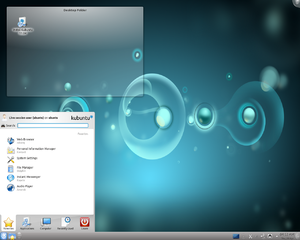
http://www.kde.org/

Plasma Desktop


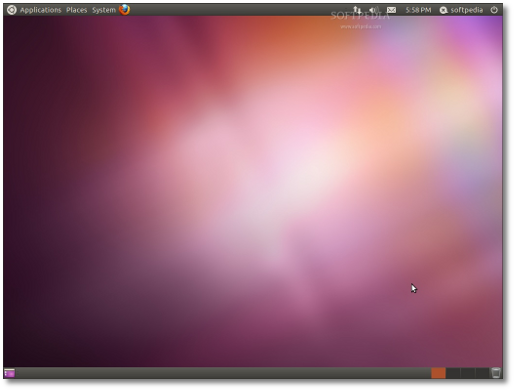
http://www.gnome.org/

GNOME Ubuntu Classic
Basically the differences between Ubuntu, Kubuntu, and Xubuntu are the desktop interfaces and installation packages that come with each version. For example, Ubuntu uses the GNOME desktop, Kubuntu uses the KDE desktop, and Xubuntu uses the XFCE desktop which I just read is a more lightweight desktop than the others. Ubuntu now uses the Unity desktop, but you can still use GNOME if you don't like Unity. I am posting this because Unity has scared off some users so some people might want to check out other desktops. I personally like Unity and think it just takes some getting use to.
A link on how to install Kubuntu
How to install KDE on Ubuntu
The simple terminal command is:
sudo apt-get install kubuntu-desktop
and Xubuntu
Installing Xfce on Ubuntu
The simple terminal command is:
sudo apt-get install xubuntu-desktop
From the same website, http://www.psychocats.net, a post on going from Unity to GNOME
How to return to classic Gnome in Ubuntu
and a post on the difference between GNOME and KDE
KDE and Gnome Comparison
This site, http://www.psychocats.net/ubuntu, also has several other post concerning Ubuntu so you might want to check it out!
Some additional links from howtogeek - http://www.howtogeek.com/:
Install KDE (Kubuntu) on Ubuntu - http://www.howtogeek.com/howto/ubuntu/install-kde-kubuntu-on-ubuntu/
Install Xfce (Xubuntu) on Ubuntu Linux - http://www.howtogeek.com/howto/ubuntu/install-xfce-xubuntu-on-ubuntu-linux/
A good, but short, post on the different desktops in Ubuntu 11.04 from http://scottlinux.com/:
Ubuntu 11.04 Change From Unity To Classic Gnome - http://scottlinux.com/2011/03/05/ubuntu-11-04-change-from-unity-to-classic-gnome/
http://www.xubuntu.org/
Xubuntu is a community developed operating system that is well-suited for laptops and desktops. Whether you use it at home, at school or at work Xubuntu contains all the applications you'll ever need, from word processing and email applications, to web server software and programming tools.
Xubuntu is and always will be free of charge. You do not pay any licensing fees. You can download, use and share Xubuntu with your friends, family, school or business for absolutely nothing.
We issue a new Xubuntu release every six months. That means you'll always have the latest and greatest applications that the open source world has to offer.
Xubuntu is designed with security in mind. You get free security updates for at least 18 months and with the Long Term Support (LTS) version you get three years support. There is no extra fee for the LTS version, we make our very best work available to everyone on the same free terms. Upgrades to new versions of Xubuntu are and always will be free of charge.
Everything you need comes on one CD, providing a complete working environment. Additional software is available online.
The graphical installer enables you to get up and running quickly and easily. A standard installation should take less than 25 minutes.
Once installed your system is immediately ready-to-use. We provide you with a desktop offering that includes a full set of productivity, internet, drawing and graphics applications, and games.
http://www.xfce.org/

http://www.kubuntu.org/
Kubuntu is a community developed and supported project. Since its launch in October 2004, Kubuntu has become one of the most highly regarded Linux distributions with millions of users around the world.
Kubuntu will always be free to download, free to use and free to distribute to others. With these goals in mind, Kubuntu aims to be the most widely used Linux system, and is the centre of a global open source software ecosystem.
http://www.kde.org/
Plasma Desktop
http://www.gnome.org/
GNOME Ubuntu Classic
Google Chrome vs Chromium web browsers
Here is a good explanation on the differences between Google Chrome and Chromium web browsers.
Why Can't We All Use Chromium Instead of Google Chrome?
Also a post on installing Chromium
Install Chromium Web Browser in Ubuntu in 3 Easy Steps(Lucid,Karmic,Jaunty)
Why Can't We All Use Chromium Instead of Google Chrome?
Also a post on installing Chromium
Install Chromium Web Browser in Ubuntu in 3 Easy Steps(Lucid,Karmic,Jaunty)
Ubuntu 11.04 - My first thoughts, tips, tricks, help, and more (Unity)
Ok so I upgraded to Ubuntu 11.04, and so far it is eh, ok. The things I like are the snap windows like Windows 7 has which are very helpful to me since I use them to split things on the screen when using my laptop.
(Edit: 7-17-11, I think Unity just takes some getting used to and this is a very un-mature version since it is the first, I expect things to get significantly better with 11.10 and 12.04 LTS. Also it is a personal preference too. Many still like GNOME, KDE, or XFCE which is, of course, fine, but I figured that I might as well get use to Unity since it is going to be the norm for Ubuntu from now on.
End edit.)

The new Ubuntu desktop interface called Unity takes some getting use to, and it is growing on me. There is a button at the top you click on to find other programs and such.


Ubuntu is going towards maximizing window space in 11.04 so they did away with visible scroll bars (well except now my scroll bars are present; I installed the KDE and Xfce desktops since at first I was a little frustrated with Unity so I think it has a tendency to switch styles on me even though I am in Unity??) and moved window commands to the top bar.
EDIT: The scroll bars appear on some programs such as Chrome, Foxit, etc. but are "hidden" in the file managers.
Ubuntu also did away with the bottom bar of open windows so I had to get use to using the keyboard command ATL + TAB to shift from on to the other (the same command works in Windows 7 as the same function). You can also awitch workspaces by pressing CTRL+ATL + arrow keys.
EDIT: Unity seems to push the user to using more keyboard shortcuts. I personally like this since you can sometimes be more efficient with keyboard commands. However, others may not like using the keyboard much and would rather use the mouse more which 11.04 still allows for the most part. All personal preference.


So Ubuntu also went Windows 7-ish with the side bar which contains a list of programs saved like you had at the top bar in previous Ubuntu versions, and it shows you what windows you're in and how of those windows are open.


I found the scroll bar example. Seems it doesn't apply to Google Chrome or Foxit.

When you click on the button with several windows it will give you a preview of all open windows and or open all minimized windows of that program or bring them to the front.

Anyways the sidebar can be a little frustrating at times since it auto hides, which is great, but when you have a lot of program buttons installed it will zoom to the section nearest your mouse cursor. So sometime it can be frustrating because it takes two or three attempts to get to the section you want where your program button is visible. This is only minor and you get use to it after awhile and get pretty good at it.
(Edit: 7-17-11 Also scroll down for links to Ubuntu keyboard commands and shortcuts which should help if there is still mousing difficulty.
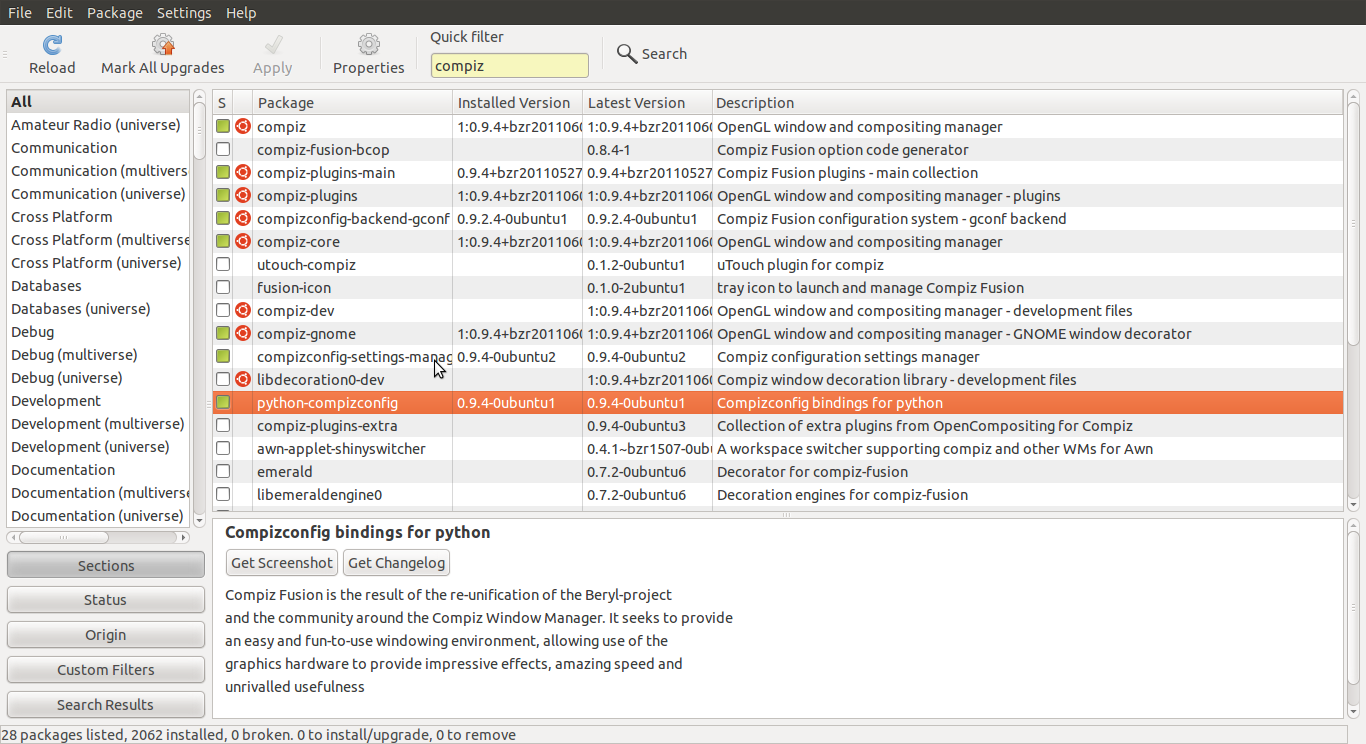
Or you can also disable the auto-hide feature if you like the bar to remain visible at all times. To do this simply install the compizconfig-settings-manager or CCSM. To do this, since it is now installed by default, simply go to the Synaptic Package Manager type in compiz and the CCSM should appear in the list. You may have to scroll down to find it or it may be the first one to appear, I forget which it is. Op, it is about the 11th down.

Anyways, mark this to be installed and apply it. It will also install python-compizconfig which is the Compizconfig bindings for python. It is a two rows down.

I have no clue what it is or does. Just do it, :P! Then you can run CCSM and find the Ubuntu Unity plugin. Click and find the hide settings.


Links where I found this. I have also added more feeds to my blog list.
Tweak Unity to better suit your needs. Don't give up! - http://ubuntu4beginners.blogspot.com/2011/04/tweak-unity-to-better-suit-your-needs.html
How To Change The Settings Of Ubuntu Unity With CompizConfig Settings Manager - http://www.makeuseof.com/tag/change-settings-ubuntu-unity-compizconfig-settings-manager/
Links on Ubuntu 11.04 Unity and impressions:
Ubuntu 11.04 Unity – A Big Leap Forward For Linux - http://www.makeuseof.com/tag/ubuntu-1104-unity-big-leap-linux/
Ubuntu Wicoh'an - My thoughts on Unity - http://ubuntuwicohan.blogspot.com/2011/04/my-thoughts-on-unity.html
A nice 7-page review from ars technia-> Riding the Narwhal: Ars reviews Unity in Ubuntu 11.04 -http://arstechnica.com/open-source/reviews/2011/05/riding-the-narwhal-ars-reviews-unity-in-ubuntu-1104.ars/
Unity customization information:
Unity personalization: how much can you really do? - http://www.omgubuntu.co.uk/2011/03/unity-personalization-how-much-can-you-really-do/
For those that long for GNOME...in Unity, and some "reflections" on Unity opinions in the comments section:
‘Classicmenu indicator’ puts old-school GNOME menus in Unity - http://www.omgubuntu.co.uk/2011/06/classicmenu-indicator-puts-old-school-gnome-menus-in-unity/
Edit done.)
I found this site/blog really interesting and helpful. They several good topics about Ubuntu posted, and the site is regularly updated.
http://www.techdrivein.com/
Here are a few of their post.
31 Useful Ubuntu 11.04 Unity Keyboard/Mouse Shortcuts
18 Applications You Need to Install and Experience After Installing Ubuntu
12 Things I did After Installing New Ubuntu 11.04 "Natty Narwhal"
Edit/Update: 7-17-11
I've added some more blogs to the blog list, so check them out.
Here is a useful post on keyboard shortcuts for Unity from http://ubuntu4beginners.blogspot.com.
Unity desktop mouse tricks and keyboard shortcuts - http://ubuntu4beginners.blogspot.com/2011/04/unity-desktop-mouse-tricks-and-keyboard.html
The link above in turn links to a great Ubuntu community called AskUbuntu (http://askubuntu.com/) and a post there.
Unity keyboard/mouse shortcuts - http://askubuntu.com/questions/28086/unity-keyboard-mouse-shortcuts
(Edit: 7-17-11, I think Unity just takes some getting used to and this is a very un-mature version since it is the first, I expect things to get significantly better with 11.10 and 12.04 LTS. Also it is a personal preference too. Many still like GNOME, KDE, or XFCE which is, of course, fine, but I figured that I might as well get use to Unity since it is going to be the norm for Ubuntu from now on.
End edit.)

The new Ubuntu desktop interface called Unity takes some getting use to, and it is growing on me. There is a button at the top you click on to find other programs and such.


Ubuntu is going towards maximizing window space in 11.04 so they did away with visible scroll bars (well except now my scroll bars are present; I installed the KDE and Xfce desktops since at first I was a little frustrated with Unity so I think it has a tendency to switch styles on me even though I am in Unity??) and moved window commands to the top bar.
EDIT: The scroll bars appear on some programs such as Chrome, Foxit, etc. but are "hidden" in the file managers.
Ubuntu also did away with the bottom bar of open windows so I had to get use to using the keyboard command ATL + TAB to shift from on to the other (the same command works in Windows 7 as the same function). You can also awitch workspaces by pressing CTRL+ATL + arrow keys.
EDIT: Unity seems to push the user to using more keyboard shortcuts. I personally like this since you can sometimes be more efficient with keyboard commands. However, others may not like using the keyboard much and would rather use the mouse more which 11.04 still allows for the most part. All personal preference.


So Ubuntu also went Windows 7-ish with the side bar which contains a list of programs saved like you had at the top bar in previous Ubuntu versions, and it shows you what windows you're in and how of those windows are open.


I found the scroll bar example. Seems it doesn't apply to Google Chrome or Foxit.

When you click on the button with several windows it will give you a preview of all open windows and or open all minimized windows of that program or bring them to the front.

Anyways the sidebar can be a little frustrating at times since it auto hides, which is great, but when you have a lot of program buttons installed it will zoom to the section nearest your mouse cursor. So sometime it can be frustrating because it takes two or three attempts to get to the section you want where your program button is visible. This is only minor and you get use to it after awhile and get pretty good at it.
(Edit: 7-17-11 Also scroll down for links to Ubuntu keyboard commands and shortcuts which should help if there is still mousing difficulty.
Or you can also disable the auto-hide feature if you like the bar to remain visible at all times. To do this simply install the compizconfig-settings-manager or CCSM. To do this, since it is now installed by default, simply go to the Synaptic Package Manager type in compiz and the CCSM should appear in the list. You may have to scroll down to find it or it may be the first one to appear, I forget which it is. Op, it is about the 11th down.

Anyways, mark this to be installed and apply it. It will also install python-compizconfig which is the Compizconfig bindings for python. It is a two rows down.
I have no clue what it is or does. Just do it, :P! Then you can run CCSM and find the Ubuntu Unity plugin. Click and find the hide settings.


Links where I found this. I have also added more feeds to my blog list.
Tweak Unity to better suit your needs. Don't give up! - http://ubuntu4beginners.blogspot.com/2011/04/tweak-unity-to-better-suit-your-needs.html
How To Change The Settings Of Ubuntu Unity With CompizConfig Settings Manager - http://www.makeuseof.com/tag/change-settings-ubuntu-unity-compizconfig-settings-manager/
Links on Ubuntu 11.04 Unity and impressions:
Ubuntu 11.04 Unity – A Big Leap Forward For Linux - http://www.makeuseof.com/tag/ubuntu-1104-unity-big-leap-linux/
Ubuntu Wicoh'an - My thoughts on Unity - http://ubuntuwicohan.blogspot.com/2011/04/my-thoughts-on-unity.html
A nice 7-page review from ars technia-> Riding the Narwhal: Ars reviews Unity in Ubuntu 11.04 -http://arstechnica.com/open-source/reviews/2011/05/riding-the-narwhal-ars-reviews-unity-in-ubuntu-1104.ars/
Unity customization information:
Unity personalization: how much can you really do? - http://www.omgubuntu.co.uk/2011/03/unity-personalization-how-much-can-you-really-do/
For those that long for GNOME...in Unity, and some "reflections" on Unity opinions in the comments section:
‘Classicmenu indicator’ puts old-school GNOME menus in Unity - http://www.omgubuntu.co.uk/2011/06/classicmenu-indicator-puts-old-school-gnome-menus-in-unity/
Edit done.)
I found this site/blog really interesting and helpful. They several good topics about Ubuntu posted, and the site is regularly updated.
http://www.techdrivein.com/
Here are a few of their post.
31 Useful Ubuntu 11.04 Unity Keyboard/Mouse Shortcuts
18 Applications You Need to Install and Experience After Installing Ubuntu
12 Things I did After Installing New Ubuntu 11.04 "Natty Narwhal"
Edit/Update: 7-17-11
I've added some more blogs to the blog list, so check them out.
Here is a useful post on keyboard shortcuts for Unity from http://ubuntu4beginners.blogspot.com.
Unity desktop mouse tricks and keyboard shortcuts - http://ubuntu4beginners.blogspot.com/2011/04/unity-desktop-mouse-tricks-and-keyboard.html
The link above in turn links to a great Ubuntu community called AskUbuntu (http://askubuntu.com/) and a post there.
Unity keyboard/mouse shortcuts - http://askubuntu.com/questions/28086/unity-keyboard-mouse-shortcuts
Wednesday, June 1, 2011
Ubuntu - Weird sounds from speaker
Ok, this is really weird. Randomly, my music or whatever was coming out of my speakers began sounding warped or muffled. It had like a weird echo or something. Anyways, I couldn't get rid of it by restarting programs. I finally got something to work by opening the sound preferences and changing the audio profile under the hardware tab. Why the sound started and why the "fix" worked, I have no idea?!
edit: This was happening on my laptop only.
edit: This was happening on my laptop only.
Friday, May 20, 2011
Ubuntu Unity - Sidebar getting stuck
Edit: 9-15-11, looks like Ubuntu's latest update has fixed this!!
One thing that frustrates me about Ubuntu 11.04 and Unity is when I am in Mendeley Desktop and want to combine authors or do something on the LHS the sidebar will pop up and remain there blocking part of the window. At first I thought it was broken, but it is, not really buggy, just flawed. The way I figured how to get it to hide again is go to somewhere like an internet page and click and drag across some text to highlight, then click in the highlighted text and drag away like you're going to place it somewhere else where you'll see the hand in a fist, the transparent text, and a plus sign, and the side bar will hide again once you release the button.

Also see here where I posted on AskUbuntu - http://askubuntu.com/:
What to do when Unity's Launcher gets stuck open? - http://askubuntu.com/questions/41962/what-to-do-when-unitys-launcher-gets-stuck-open/44165#44165
One thing that frustrates me about Ubuntu 11.04 and Unity is when I am in Mendeley Desktop and want to combine authors or do something on the LHS the sidebar will pop up and remain there blocking part of the window. At first I thought it was broken, but it is, not really buggy, just flawed. The way I figured how to get it to hide again is go to somewhere like an internet page and click and drag across some text to highlight, then click in the highlighted text and drag away like you're going to place it somewhere else where you'll see the hand in a fist, the transparent text, and a plus sign, and the side bar will hide again once you release the button.

Also see here where I posted on AskUbuntu - http://askubuntu.com/:
What to do when Unity's Launcher gets stuck open? - http://askubuntu.com/questions/41962/what-to-do-when-unitys-launcher-gets-stuck-open/44165#44165
Monday, May 9, 2011
Quickie - Keyboard shortcuts - Google Chrome
Hold
ctrl + left or right arrow
to switch between tabs.
ctrl + left or right arrow
to switch between tabs.
Wednesday, April 27, 2011
Quickie - Keyboard shortcuts, Kile
Just found another keyboard shortcut for Kile. When wanting to move between tabs, simply press and hold atl + the left or right arrows.
Tuesday, April 26, 2011
Quickie - Keyboard shortcuts
Ok, here is another shortcut that I "knew" about but at the same time didn't know about. I always wondered how some people could use the keyboard and not the mouse to do so many things on the computer, especially in document setting or any typing setting such as programming. Again, I feel lame for not knowing this. I know and use quite often keyboard shortcuts such as
cut, copy, and paste (crtl + x, c, v), save and save as (ctrl + s, ctrl-shift + s), and undo (ctrl + z),
but I finally figured out some selection tools,
ctrl + arrow (left or right)
will jump to the beginning of each word and
shift + the arrow keys (l or r)
will select and highlight each letter as you use the arrow keys. I know, simple and something I should have probably already known. However, I am sure some, like myself, were not aware or it has not been brought to their attention. So try it out and I encourage you to use keyboard shortcuts when ever possible. It allows for seamless typing so you don't have to stop and grab the mouse, line up the correct spot, etc. However, if you feel comfortable doing it your way and feel that it is faster, then of course do what feels best for you and of course using the mouse/touch pad is quicker in some situations. Just a suggestion, especially if you program or type a lot like myself. Some that I am sure programming/typing gurus use all the time. I am sure there are many other shortcuts that I will stumble upon later.
edit: I found another, told ya! To select the whole word and highlight it use
crtl-shift + left or right arrows
Another one:
crtl + backspace
will delete the whole word that ctrl + left arrow would have brought to the beginning or crtl-shift + arrow would have selected
cut, copy, and paste (crtl + x, c, v), save and save as (ctrl + s, ctrl-shift + s), and undo (ctrl + z),
but I finally figured out some selection tools,
ctrl + arrow (left or right)
will jump to the beginning of each word and
shift + the arrow keys (l or r)
will select and highlight each letter as you use the arrow keys. I know, simple and something I should have probably already known. However, I am sure some, like myself, were not aware or it has not been brought to their attention. So try it out and I encourage you to use keyboard shortcuts when ever possible. It allows for seamless typing so you don't have to stop and grab the mouse, line up the correct spot, etc. However, if you feel comfortable doing it your way and feel that it is faster, then of course do what feels best for you and of course using the mouse/touch pad is quicker in some situations. Just a suggestion, especially if you program or type a lot like myself. Some that I am sure programming/typing gurus use all the time. I am sure there are many other shortcuts that I will stumble upon later.
edit: I found another, told ya! To select the whole word and highlight it use
crtl-shift + left or right arrows
Another one:
crtl + backspace
will delete the whole word that ctrl + left arrow would have brought to the beginning or crtl-shift + arrow would have selected
Thursday, March 17, 2011
Quickie - PDFs - middle mouse button
Here's a quickie. Most may already know this, but I didn't so surely someone else doesn't, :P. When using a PDF reader (at least for Okular and Foxit) you can click the middle mouse button on the scroll bar and it will take you to that area of the PDF.
edit: This also works for any window in Ubuntu (and maybe for Windows too?). I feel lame that I didn't already know this, :P.
edit: This also works for any window in Ubuntu (and maybe for Windows too?). I feel lame that I didn't already know this, :P.
Wednesday, March 16, 2011
LaTeX - Placing a figure or image in a table
This is pretty cool, easy, and helpful. I have some tables that I took a snapshot of and made them images. However, in my thesis I want to display these "figures" as a table. I found out how to do it here. (Great blog that I have linked to and spoken about before on LaTeX.)
http://texblog.wordpress.com/2008/02/04/placing-graphicsimages-inside-a-table/
I will post my code and an image later.
http://texblog.wordpress.com/2008/02/04/placing-graphicsimages-inside-a-table/
I will post my code and an image later.
Grammar Rules: Apostrophes
Well, I thought I would list some grammar help/rules/tips and links since I will be writing most of my life from here on out as a scientist. Now science and I imagine other fields can bend/break rules since they are not writing a strict literature. It's kind of like novelist who can and have to write "non-perfect" grammar and writing styles or rules.
Anyways, this post is about apostrophes. I always forget if you need the 's for possession for a name that ends in s. I found out here
http://www.grammarbook.com/punctuation/apostro.asp
that the 's is not necessary but preferred. I will post more helpful links later.
Anyways, this post is about apostrophes. I always forget if you need the 's for possession for a name that ends in s. I found out here
http://www.grammarbook.com/punctuation/apostro.asp
that the 's is not necessary but preferred. I will post more helpful links later.
Friday, March 4, 2011
Some Quick Keyboard Shortcuts - Ubuntu, Okular, Foxit PDF Reader
Here is another quickie, ;). When looking at files in Ubuntu, I like to usually see them in list form since I am usually hunting down a PDF of a paper. Just hit Crtl+2 to quick view the list view.
In Okular, Kile's default PDF reader, which is pretty good I might add, hit F7 to toggle between viewing the sidebar or not. In Foxit hit F4.
In Okular, Kile's default PDF reader, which is pretty good I might add, hit F7 to toggle between viewing the sidebar or not. In Foxit hit F4.
Kile - Moving File Tabs
Ahhhh, finally. I always thought it would be nice if you could move the tab files around since I like them in a certain order sometimes. I thought for sure there was a way to do it but haven't found it....until now!! Simply click and hold the middle mouse button, and viola, the tabs can be moved by scrolling to the left or right!!
Tuesday, February 8, 2011
Update on Kile and Texmaker (and some TeXworks)
Alright, well I tried running Texmaker on my old laptop last night and was having trouble, probably due to my laptop. Anyways I keep getting drawn back to Kile, so I think I will move between both. I will probably stay on Kile when on Ubuntu and use Texmaker when I have to use Windows.
So one feature about Kile I really like, is its find and replace abilities. I didn't really like TeXworks or Winedt's find features. TeXworks is ok, but Kile's is quite nice, and IMO, blows the others out of the water.
Kile's find feature:

Well I just found out with a quick test that Texmaker's is just as good. Both Kile and Texmaker make it seamless to quickly find words with an on the fly popup menu while TeXworks and Winedt made it painful where you had to keep hitting crtl+f!
Texmaker's find feature:

Ok, just got burned. I just tested TeXworks again for a screenshot, and I noticed that there is an option for "Find all places" or something like that. It also has a dropmenu for previous searches. So TeXworks seems to be maybe just a notch under Kile and Texmaker. I also imagine that Winedt has a similar feature that I missed too.


So as of right now, to me, Kile and Texmaker seem to be the best LaTeX editors for Ubuntu/Linux where Texmaker is cross-platform so I would use it for Windows. They both have a few better features than the others, but otherwise are pretty equal.
So one feature about Kile I really like, is its find and replace abilities. I didn't really like TeXworks or Winedt's find features. TeXworks is ok, but Kile's is quite nice, and IMO, blows the others out of the water.
Kile's find feature:

Well I just found out with a quick test that Texmaker's is just as good. Both Kile and Texmaker make it seamless to quickly find words with an on the fly popup menu while TeXworks and Winedt made it painful where you had to keep hitting crtl+f!
Texmaker's find feature:

Ok, just got burned. I just tested TeXworks again for a screenshot, and I noticed that there is an option for "Find all places" or something like that. It also has a dropmenu for previous searches. So TeXworks seems to be maybe just a notch under Kile and Texmaker. I also imagine that Winedt has a similar feature that I missed too.


So as of right now, to me, Kile and Texmaker seem to be the best LaTeX editors for Ubuntu/Linux where Texmaker is cross-platform so I would use it for Windows. They both have a few better features than the others, but otherwise are pretty equal.
More on LaTeX editors: TeXworks, Texmaker, Kile, GEdit-LaTeX, Vim-LaTeX, TEA Text Editor, LaTeXila, and Winefish
Whelp, here I am again, debating on what LaTeX editor to use, :P. I think I am going to try Texmaker out again. The reason I am switching is that (not sure if was TeXworks itself, but I was using it so I am going to blame it, :P) I opened chapter 2 of my thesis and got a bunch of junk! I don't know wth happened, but it looked like it had become corrupted. It looked as if a log file was saved instead of my work. Luckily, most LaTeX editors have backups of everything. However, the latest backup TeXworks had wasn't the latest I know I had completed and saved!! Luckily, I hadn't done much to the chapter so it will be easily fixed.
Thus, I am irritated with TeXworks so I am going to try Texmaker again. The reason why I am trying Texmaker and not Kile is the fact that Texmaker is cross-platform. A few things I have noticed since using Texmaker again. One, is that I think my issue with the syntax coloring has partly to do with the type of font. So I am going to experiment with fonts to see how they please my eyes. However, Texmaker does not let you preview fonts like Kile, a con.

Here are some pics on Texmaker's font and syntax coloring and Kile's syntax coloring.


Another small thing that I don't like about Texmaker as compared to Kile and TeXworks is that in Texmaker you have to open up files one by one. You cannot select more than one file at a time while in Kile and others like TeXworks you can.
Also, when scrolling through the tabs in TeXmaker, you cannot scroll through the last tab into the first again for a cycle while in Kile you can. Heh, I may be switching to Kile again! Oh well, a learning process
A few more editors to possibly try are Linux/Ubuntu's GEdit (text editor). It has a LaTeX plug-in. There is also a similar software/program/text editor to Emacs called Vi/Vim which stands for Vi Improved. A few more in Ubuntu's software repositories are TEA Text Editor, LaTeXila, and Winefish.
One note about Vim and Emacs is that they are designed for optimizing keyboard use. They maximize time spent using the keyboard with tons of shortcut commands.
http://projects.gnome.org/gedit/
http://www.vim.org/
http://vim-latex.sourceforge.net/
http://winefish.berlios.de/
http://tea-editor.sourceforge.net/
http://latexila.sourceforge.net/
A few discussions I found through Google over LaTeX editors.
http://ubuntuforums.org/showthread.php?t=793738
http://stackoverflow.com/questions/1235043/what-latex-editor-do-you-suggest-for-linux
http://www.latex-community.org/forum/viewtopic.php?f=41&t=9151
http://ubuntuforums.org/showthread.php?t=486126
http://www.ubuntugeek.com/gummi-simple-latex-editor-written-in-pythongtk.html
http://www.ubuntu-virginia.ubuntuforums.org/showthread.php?t=1559670
http://askubuntu.com/questions/501/whats-the-easiest-way-to-get-started-with-latex
Best editor for Debian. - http://www.latex-community.org/forum/viewtopic.php?f=28&t=9033&start=0
Here is a great in-depth blog post that reviews some LaTeX editors. Has some cool animated pictures!!
http://www.charlietanksley.net/philtex/editors/
Thus, I am irritated with TeXworks so I am going to try Texmaker again. The reason why I am trying Texmaker and not Kile is the fact that Texmaker is cross-platform. A few things I have noticed since using Texmaker again. One, is that I think my issue with the syntax coloring has partly to do with the type of font. So I am going to experiment with fonts to see how they please my eyes. However, Texmaker does not let you preview fonts like Kile, a con.

Here are some pics on Texmaker's font and syntax coloring and Kile's syntax coloring.


Another small thing that I don't like about Texmaker as compared to Kile and TeXworks is that in Texmaker you have to open up files one by one. You cannot select more than one file at a time while in Kile and others like TeXworks you can.
Also, when scrolling through the tabs in TeXmaker, you cannot scroll through the last tab into the first again for a cycle while in Kile you can. Heh, I may be switching to Kile again! Oh well, a learning process
A few more editors to possibly try are Linux/Ubuntu's GEdit (text editor). It has a LaTeX plug-in. There is also a similar software/program/text editor to Emacs called Vi/Vim which stands for Vi Improved. A few more in Ubuntu's software repositories are TEA Text Editor, LaTeXila, and Winefish.
One note about Vim and Emacs is that they are designed for optimizing keyboard use. They maximize time spent using the keyboard with tons of shortcut commands.
http://projects.gnome.org/gedit/
http://www.vim.org/
http://vim-latex.sourceforge.net/
http://winefish.berlios.de/
http://tea-editor.sourceforge.net/
http://latexila.sourceforge.net/
A few discussions I found through Google over LaTeX editors.
http://ubuntuforums.org/showthread.php?t=793738
http://stackoverflow.com/questions/1235043/what-latex-editor-do-you-suggest-for-linux
http://www.latex-community.org/forum/viewtopic.php?f=41&t=9151
http://ubuntuforums.org/showthread.php?t=486126
http://www.ubuntugeek.com/gummi-simple-latex-editor-written-in-pythongtk.html
http://www.ubuntu-virginia.ubuntuforums.org/showthread.php?t=1559670
http://askubuntu.com/questions/501/whats-the-easiest-way-to-get-started-with-latex
Best editor for Debian. - http://www.latex-community.org/forum/viewtopic.php?f=28&t=9033&start=0
Here is a great in-depth blog post that reviews some LaTeX editors. Has some cool animated pictures!!
http://www.charlietanksley.net/philtex/editors/
Friday, February 4, 2011
Linux/Ubuntu Directory Structure
I thought this was interesting and helpful so I decided to repost it. It is from 2006, but I think it is still valid.
http://www.ubuntugeek.com/linux-or-ubuntu-directory-structure.html
In the Linux operating system, all filesystems are contained within one directory hierarchy. The root directory is the top level directory, and all its subdirectories make up the directory hierarchy. This differs to other operating systems such as MS-Windows which applies a separate hierarchy for each device and partition.
/bin - binary applications (most of your executable files)
/boot - files required to boot (such as the kernel, etc)
/dev - your devices (everything from drives to displays)
/etc - just about every configuration file for your system
/etc/profile.d - contains scripts that are run by /etc/profile upon login.
/etc/rc.d - contains a number of shell scripts that are run on bootup at different run levels. There is also typically an rc.inet1 script to set up networking (in Slackwar), an rc.modules script to load modular device drivers, and an rc.local script that can be edited to run commands desired by the administrator, along the lines of autoexec.bat in DOS.
/etc/rc.d/init.d - contains most of the initialization scripts themselves on an rpm-based system.
/etc/rc.d/rc*.d - where “*” is a number corresponding to the default run level. Contains files for services to be started and stopped at that run level. On rpm-based systems, these files are symbolic links to the initialization scripts themselves, which are in /etc/rc.d/init.d.
/etc/skel - directory containing several example or skeleton initialization shells. Often contains subdirectories and files used to populate a new user’s home directory.
/etc/X11 - configuration files for the X Window system
/home - locally stored user files and folders
/lib - system libraries (similar to Program Files)
/lost+found - lost and found for lost files
/media - mounted (or loaded) devices such as cdroms, digital cameras, etc.
/mnt - mounted file systems
/opt - location for “optionally” installed programs
/proc - dynamic directory including information about and listing of processes
/root - “home” folder for the root user
/sbin - system-only binaries (see /bin)
/sys - contains information about the system
/tmp - temporary files
/usr - applications mainly for regular users
/var - mainly logs, databases, etc.
/usr/local/bin - the place to put your own programs. They will not be overwritten with upgrades.
/usr/share/doc - documentation.
http://www.ubuntugeek.com/linux-or-ubuntu-directory-structure.html
In the Linux operating system, all filesystems are contained within one directory hierarchy. The root directory is the top level directory, and all its subdirectories make up the directory hierarchy. This differs to other operating systems such as MS-Windows which applies a separate hierarchy for each device and partition.
/bin - binary applications (most of your executable files)
/boot - files required to boot (such as the kernel, etc)
/dev - your devices (everything from drives to displays)
/etc - just about every configuration file for your system
/etc/profile.d - contains scripts that are run by /etc/profile upon login.
/etc/rc.d - contains a number of shell scripts that are run on bootup at different run levels. There is also typically an rc.inet1 script to set up networking (in Slackwar), an rc.modules script to load modular device drivers, and an rc.local script that can be edited to run commands desired by the administrator, along the lines of autoexec.bat in DOS.
/etc/rc.d/init.d - contains most of the initialization scripts themselves on an rpm-based system.
/etc/rc.d/rc*.d - where “*” is a number corresponding to the default run level. Contains files for services to be started and stopped at that run level. On rpm-based systems, these files are symbolic links to the initialization scripts themselves, which are in /etc/rc.d/init.d.
/etc/skel - directory containing several example or skeleton initialization shells. Often contains subdirectories and files used to populate a new user’s home directory.
/etc/X11 - configuration files for the X Window system
/home - locally stored user files and folders
/lib - system libraries (similar to Program Files)
/lost+found - lost and found for lost files
/media - mounted (or loaded) devices such as cdroms, digital cameras, etc.
/mnt - mounted file systems
/opt - location for “optionally” installed programs
/proc - dynamic directory including information about and listing of processes
/root - “home” folder for the root user
/sbin - system-only binaries (see /bin)
/sys - contains information about the system
/tmp - temporary files
/usr - applications mainly for regular users
/var - mainly logs, databases, etc.
/usr/local/bin - the place to put your own programs. They will not be overwritten with upgrades.
/usr/share/doc - documentation.
Finding the .config folder in Ubuntu
The ~/.config folder can be found in your homefolder and will be named what ever you called it (I guess the login name). Mine for example is timbarber/.config since that is my login name. You will also have to click on "Show Hidden Files" under the View menu. It took me awhile to find this with Google so that is why I am posting it! Also, it is needed to find the ~/.config/inkscape/extensions folder to deposit the two Tex Text files.
More on TeXworks
A few things I have noticed about TeXworks since I have started using it. One, you cannot tab your files together as in Kile and Texmaker. This can be a little annoying if you have several files to work with and end up with a bunch of open windows on your OS system bar. This doesn't bother me enough to switch back at the moment. Second, there are no keyboard shortcuts that I am aware of for quick typing such as a math environment (such as, I think it is crtl+atl m for Kile and ctrl+shft m for Texmaker, I may have those backwards). Kile also does offer the nice amenity of auto-completion of words and environments (not sure if Texmaker had this or not, I think it auto-completes environments). Finally, it seems that in TeXworks when an error appears, you correct it, and try to re-run the file, TeXworks gets "stuck" so you have to clear the auxiliary files (such as .toc, .aux, etc.). Not a big deal, but I originally though you had to clear by hand, but luckily TeXworks has a command under the File menu to do this. A little annoying since it erases the memory of the bibliography and cross-references so you might have to run pdflatex two or three times.
I googled something like "keyboard shorcuts for math environment in TeXworks" and found a log/forum of some people asking for this to be implemented in TeXworks. Looks like a patch is here and could work. I haven't tried it yet. Have at it:
http://code.google.com/p/texworks/issues/detail?id=17
I googled something like "keyboard shorcuts for math environment in TeXworks" and found a log/forum of some people asking for this to be implemented in TeXworks. Looks like a patch is here and could work. I haven't tried it yet. Have at it:
http://code.google.com/p/texworks/issues/detail?id=17
Tuesday, February 1, 2011
LaTeX - TeXworks, Kile, Texmaker, and others such as GNU Emacs & AUCTeX, LyX, and GNU TeXmacs
I am still experimenting with several LaTeX software and editors. So far I have tried Texmaker and Kile extensively. They are both pretty good, but not the best. One thing I don't like with either is the syntax coloring (it may have better color available, but I haven't found it yet; I think there is an option to change colors, but I am not sure how much it improves with Kile or Texmaker). To me it is harder to read the less colorful syntax highlighting of Kile and Texmaker. However, Kile is a little better syntax coloring-wise than Texmaker, and Kile also has a few better features (it's been awhile since I have used Texmaker so I don't remember the differences, I just like the layout of Kile better than Texmaker).
However, I have recently tried TeXworks, and so far it is much more simple than Texmaker or Kile. TeXworks seems to have much better syntax coloring, and it is an easy option to find and turn on or off. It also recently helped me catch an error that TeXworks nor Kile could catch. TeXworks it also cross platform so it works for Windows, Mac, and Linux. This is especially helpful since I just had to use a Windows machine and use Winedt (as a frontend and MikTeX as the TeX compiler), which has only a free-trial for 30 days that I just found out about.
One good thing about Kile and Texmaker is that they will restore an old session so you don't have to re-open everything like you do in TeXworks. Texmaker has an "Restore Previous Session" selection under the File menu. However, only after you have opened up files before and closed Texmaker without closing the files. Kile does the same except it does it automatically when the program is opened.
Anyways, TeXworks (as a frontend and TeXlive as the compiler) is what I am going to be trying out for now. Really, Texmaker and Kile are not bad at all. It is just more of a personal preference for cross platform and aesthetics.
I have also been attempting to use Emacs and AUCTeX or GNU TeXmacs editor. Right now, Emacs is a little scary looking (not enough GUI for me), and GNU TeXmacs seems to be a LaTeX frontend similar to LyX. I will try to update more on these later as from what I hear learning Emacs can be quite powerful.
Shots of TeXworks (click to enlarge a bit):


Shots of Kile and Okular:


Shots of Texmaker:


Link to AUCTeX documentation: http://www.gnu.org/software/auctex/manual/auctex.pdf
Link to TeXworks documentation: http://ftp.ctex.org/pub/tex/tools/editors/TeXworks/manual.pdf
Link to GNU Emacs: http://www.gnu.org/software/emacs/
Link to GNU TeXmacs: http://www.texmacs.org/
Link to LyX: http://www.lyx.org/
Link to Texmaker: http://www.xm1math.net/texmaker/
Link to TeXworks: http://www.tug.org/texworks/
Link to Kile: http://kile.sourceforge.net/
However, I have recently tried TeXworks, and so far it is much more simple than Texmaker or Kile. TeXworks seems to have much better syntax coloring, and it is an easy option to find and turn on or off. It also recently helped me catch an error that TeXworks nor Kile could catch. TeXworks it also cross platform so it works for Windows, Mac, and Linux. This is especially helpful since I just had to use a Windows machine and use Winedt (as a frontend and MikTeX as the TeX compiler), which has only a free-trial for 30 days that I just found out about.
One good thing about Kile and Texmaker is that they will restore an old session so you don't have to re-open everything like you do in TeXworks. Texmaker has an "Restore Previous Session" selection under the File menu. However, only after you have opened up files before and closed Texmaker without closing the files. Kile does the same except it does it automatically when the program is opened.
Anyways, TeXworks (as a frontend and TeXlive as the compiler) is what I am going to be trying out for now. Really, Texmaker and Kile are not bad at all. It is just more of a personal preference for cross platform and aesthetics.
I have also been attempting to use Emacs and AUCTeX or GNU TeXmacs editor. Right now, Emacs is a little scary looking (not enough GUI for me), and GNU TeXmacs seems to be a LaTeX frontend similar to LyX. I will try to update more on these later as from what I hear learning Emacs can be quite powerful.
Shots of TeXworks (click to enlarge a bit):


Shots of Kile and Okular:


Shots of Texmaker:


Link to AUCTeX documentation: http://www.gnu.org/software/auctex/manual/auctex.pdf
Link to TeXworks documentation: http://ftp.ctex.org/pub/tex/tools/editors/TeXworks/manual.pdf
Link to GNU Emacs: http://www.gnu.org/software/emacs/
Link to GNU TeXmacs: http://www.texmacs.org/
Link to LyX: http://www.lyx.org/
Link to Texmaker: http://www.xm1math.net/texmaker/
Link to TeXworks: http://www.tug.org/texworks/
Link to Kile: http://kile.sourceforge.net/
Subscribe to:
Posts (Atom)